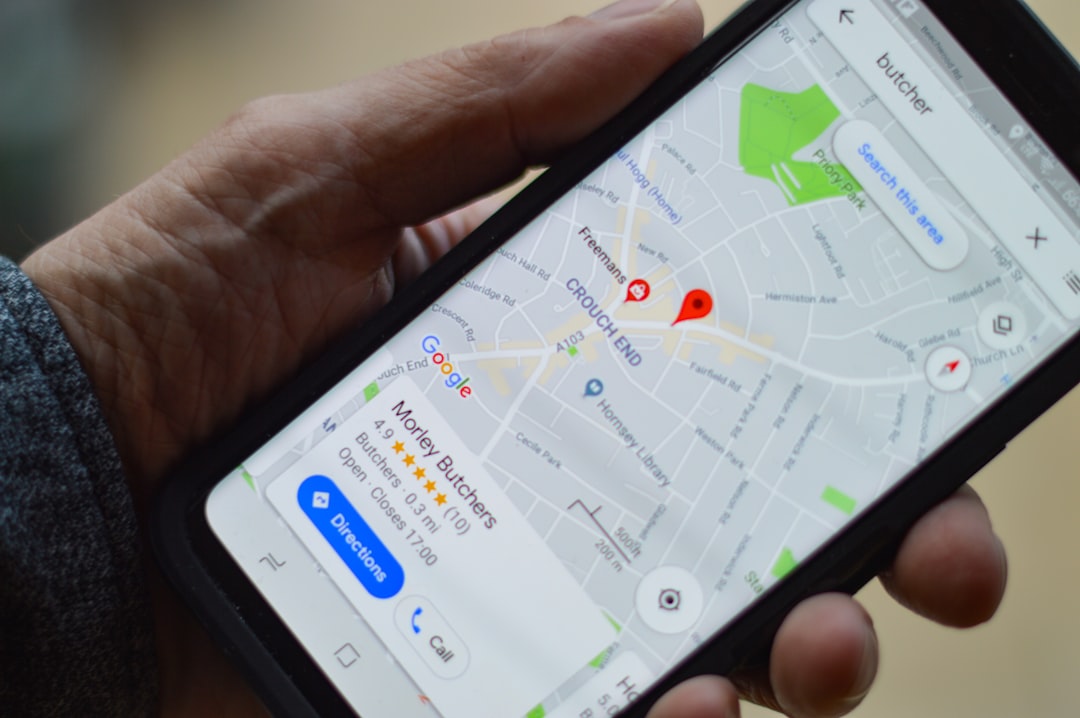
Direct answer: On Android, reliable zone tracking requires the Home Assistant Companion app to have location permission set to Allow all the time, the appropriate location sensors and Zone Based Tracking enabled, and a working connection to the Home Assistant server while away from Wi-Fi. Begin with the app’s Location History troubleshooting screen: it shows whether Android produced an update, why the app accepted or skipped it, and whether the update reached the server.
This guide addresses Home Assistant Android location or zone tracking that is not updating. It is designed to preserve working configuration and evidence before any reset, deletion, or re-pairing. Work in order and stop when the first confirmed cause is corrected. Screens and menu labels can vary by Home Assistant release and installation method.
Symptoms and scope
Use the following signs to decide whether this guide matches your problem. Similar-looking failures can come from different layers, so record what still works as carefully as what fails.
- The person or device_tracker entity remains home after the phone leaves.
- Zone enter or exit automations arrive late or not at all.
- Location updates work only while the app is open.
- Tracking works on home Wi-Fi but stops on cellular data.
- The app records a location but the entity in Home Assistant does not change.
Most likely causes, ranked
Start with the causes that fit the evidence. Do not apply every fix at once: simultaneous changes make it impossible to know what solved the problem and can create a second failure.
- 1. Android location permission is set to While using the app, approximate only, or otherwise restricted.
- 2. Zone Based Tracking or required location sensors are disabled in Companion App settings.
- 3. Battery optimization, sleeping apps, background-data limits, Data Saver, or manufacturer power management suspends the app.
- 4. The external Home Assistant URL, certificate, VPN, DNS, or mobile network cannot reach the server away from home.
- 5. Google Play services, device location, Wi-Fi/Bluetooth scanning, or GPS accuracy is impaired.
- 6. The app deliberately rejects stale, inaccurate, or duplicate readings; the location history explains the reason.
Safe diagnostic procedure
Before beginning, make a current backup when the procedure could affect configuration or stored data. Record the Home Assistant version, installation type, device or app version, the first failure time, and the last known working change. Redact secrets from every screenshot and log excerpt.
Step 1: Capture the exact failure
Open the Home Assistant Companion app → Settings → Companion app → Troubleshooting → Location tracking and enable Location History. Reproduce one departure or movement. Read the event details rather than guessing: determine whether Android generated an update, whether the app skipped it, and whether server delivery succeeded.
Interpretation: if this step changes the symptom, repeat the same controlled test once before moving on. If nothing changes, restore any temporary setting and continue. Keep a short note of the time, action, and result; that record prevents circular troubleshooting.
Step 2: Protect the current state
In Android Settings → Apps → Home Assistant → Permissions, set Location to Allow all the time and enable precise location where available. Menu names differ by manufacturer. Also confirm the phone’s main Location switch is on. Do not grant permissions to unrelated apps.
Interpretation: if this step changes the symptom, repeat the same controlled test once before moving on. If nothing changes, restore any temporary setting and continue. Keep a short note of the time, action, and result; that record prevents circular troubleshooting.
Step 3: Verify the affected layer
In Companion App settings, enable Location Zone and Zone Based Tracking as documented for Android. Review the device’s enabled sensors in Home Assistant. Avoid enabling every high-frequency sensor merely for troubleshooting; start with the minimum location features required for presence.
Interpretation: if this step changes the symptom, repeat the same controlled test once before moving on. If nothing changes, restore any temporary setting and continue. Keep a short note of the time, action, and result; that record prevents circular troubleshooting.
Step 4: Test the least-destructive cause
Remove Home Assistant from battery optimization or sleeping-app lists using the device maker’s supported settings. Allow background activity and unrestricted battery use when necessary. Samsung, Xiaomi, OnePlus, and other vendors add controls beyond stock Android, so verify after system updates.
Interpretation: if this step changes the symptom, repeat the same controlled test once before moving on. If nothing changes, restore any temporary setting and continue. Keep a short note of the time, action, and result; that record prevents circular troubleshooting.
Step 5: Inspect configuration and identity
Allow background data and cellular data for Home Assistant. If Data Saver is active, grant the app unrestricted data as appropriate. Turn off Wi-Fi and open the configured external Home Assistant URL in the app; a server connection failure is not a GPS failure.
Interpretation: if this step changes the symptom, repeat the same controlled test once before moving on. If nothing changes, restore any temporary setting and continue. Keep a short note of the time, action, and result; that record prevents circular troubleshooting.
Step 6: Check network, power, or permissions
Check the Companion app connection settings, internal URL, external URL, SSID rules, VPN, and certificate trust. Do not weaken TLS validation or expose Home Assistant directly merely to make tracking work. Repair the certificate, proxy, tunnel, or secure remote-access path.
Interpretation: if this step changes the symptom, repeat the same controlled test once before moving on. If nothing changes, restore any temporary setting and continue. Keep a short note of the time, action, and result; that record prevents circular troubleshooting.
Step 7: Apply the narrow repair
Review zone geometry and the Home zone radius. Overlapping zones, a huge Home radius, GPS drift, and short trips can make a correct location appear wrong. Compare the raw coordinates privately and never publish home coordinates or a screenshot showing your address.
Interpretation: if this step changes the symptom, repeat the same controlled test once before moving on. If nothing changes, restore any temporary setting and continue. Keep a short note of the time, action, and result; that record prevents circular troubleshooting.
Step 8: Observe through a full cycle
Send a one-time request-location notification only as a diagnostic if the device supports it. It can prompt an update, but it is not a substitute for background permission and may fail when the operating system cannot obtain a timely fix. Avoid frequent forced requests that drain the battery.
Interpretation: if this step changes the symptom, repeat the same controlled test once before moving on. If nothing changes, restore any temporary setting and continue. Keep a short note of the time, action, and result; that record prevents circular troubleshooting.
Installation and environment branches
Home Assistant OS or appliance-style installs
No events in Location History: focus on Android permission, sensors, battery management, and device location services.
Container, network, or account variation
Events exist but show skipped readings: inspect accuracy, age, duplicate suppression, and the reason recorded by the app.
Partial failure versus complete failure
Events are sent but server rejects or never receives them: focus on authentication, external connectivity, certificates, and server logs.
Multi-device or multi-hop environments
Entity changes but person does not: inspect the Person configuration and every tracker attached to that person; another tracker may still report home.
What not to do
- Do not delete the integration, device, database, app registration, or proxy configuration merely because it is the fastest visible button. Deletion can remove evidence and create new entity identities.
- Do not paste passwords, tokens, encryption keys, exact home coordinates, public URLs with credentials, or unredacted logs into a forum or support ticket.
- Do not disable firewalls, TLS verification, authentication, or other security controls as a permanent workaround. A useful test must be narrow, timed, and reversed.
- Do not make several network, software, and device changes together. Change one variable, observe the result, and keep the working rollback path.
- Do not assume a restart is a diagnosis. A restart can temporarily hide timing, memory, radio, storage, or connectivity faults without correcting them.
Verification checklist
Perform a controlled test that protects privacy: note the time, leave the Home zone by a safe margin, wait for a normal update, and check Location History. Confirm the device_tracker changes first, then the Person entity and finally the automation trace. Repeat on cellular data with the app closed and screen off. Return home and verify the reverse transition. One manual refresh while the app is open does not prove background tracking is fixed.
- The original symptom is gone under the same conditions that previously reproduced it.
- The relevant log has no new matching error after a normal update or restart cycle.
- Related entities, history, automations, or remote access still work.
- The repair survives one controlled restart of the affected component.
- Temporary troubleshooting exceptions have been removed or documented.
Rollback and recovery
Before clearing app data or deleting the mobile_app integration, record the device name, notification service name, enabled sensors, Person assignment, automations, widgets, and server connection settings. Re-registration can create new entity IDs and break notifications. Try permission, connectivity, and battery fixes first. If re-registration is necessary, repair each dependency deliberately and remove duplicates only after verification.
If the evidence points to failing hardware, a vendor outage, an upstream regression, or corrupted data that matters, stop improvising. Preserve the backup and diagnostic record, then escalate with the exact version, timestamp, error, minimal reproduction, and steps already tested. That produces a safer and faster answer than repeated resets.
Prevention
- Recheck background permissions after Android and vendor updates.
- Keep a secure external connection tested on cellular data.
- Use realistic non-overlapping zone radii.
- Review Location History when delays begin.
- Avoid aggressive battery-saving profiles for the Companion app.
- Document which tracker drives each Person entity.
Schedule a brief review after the next Home Assistant update or device firmware change. Confirm that the repaired path still works, remove obsolete workarounds, and update your private documentation. Prevention is most effective when it records why a setting exists, not just its value.
Diagnostic worksheet
For Home Assistant Android location or zone tracking that is not updating, write down five facts before asking for help: the exact error, the first failure time, the last working time, the smallest action that reproduces it, and the layer that still works. Add the Home Assistant Core version, installation type, relevant device or app firmware, network path, and whether the issue survives a restart. This worksheet separates a repeatable defect from a transient outage.
If you observe: The person or device_tracker entity remains home after the phone leaves
Confirm when this began and whether it affects one entity, one device, one integration, or the whole installation. Compare the result on the same network and, when relevant, through the alternate path. Then use the matching diagnostic step above. Do not jump to recovery until the observation is repeatable or the logs identify the failing layer.
If you observe: Zone enter or exit automations arrive late or not at all
Confirm when this began and whether it affects one entity, one device, one integration, or the whole installation. Compare the result on the same network and, when relevant, through the alternate path. Then use the matching diagnostic step above. Do not jump to recovery until the observation is repeatable or the logs identify the failing layer.
If you observe: Location updates work only while the app is open
Confirm when this began and whether it affects one entity, one device, one integration, or the whole installation. Compare the result on the same network and, when relevant, through the alternate path. Then use the matching diagnostic step above. Do not jump to recovery until the observation is repeatable or the logs identify the failing layer.
If you observe: Tracking works on home Wi-Fi but stops on cellular data
Confirm when this began and whether it affects one entity, one device, one integration, or the whole installation. Compare the result on the same network and, when relevant, through the alternate path. Then use the matching diagnostic step above. Do not jump to recovery until the observation is repeatable or the logs identify the failing layer.
If you observe: The app records a location but the entity in Home Assistant does not change
Confirm when this began and whether it affects one entity, one device, one integration, or the whole installation. Compare the result on the same network and, when relevant, through the alternate path. Then use the matching diagnostic step above. Do not jump to recovery until the observation is repeatable or the logs identify the failing layer.
Frequently asked questions
Should I delete and add everything again?
Usually not. Re-adding can change entity IDs, erase evidence, and hide the original cause. Use it only after backup, documentation, and the narrower checks in this guide.
Can I ignore the error if it starts working again?
A single brief interruption may be harmless, but a recurring error deserves timestamps and logs. Repetition after the same event often reveals a network, storage, power, permission, or token lifecycle problem.
Is updating Home Assistant always the fix?
No. Updates can contain fixes, but they also change dependencies and behavior. Read release notes, back up first, and match the error to a known fix before treating an update as diagnosis.
How much log information should I share?
Share the smallest relevant window around the failure, with secrets and personal data removed. Include versions and the exact action that caused the event. Avoid uploading complete logs publicly.
When should I escalate?
Escalate when safety, important data, repeated corruption, an upstream regression, or an account-side failure is involved, or when the least-destructive checks produce a clear error you cannot resolve.
Sources and review notes
Photo: Henry Perks on Unsplash. Last reviewed: September 22, 2026. Official documentation is the authority for supported configuration. Community and issue reports are useful for identifying recurring symptoms but do not prove that every installation has the same cause.
- https://companion.home-assistant.io/docs/core/location/
- https://companion.home-assistant.io/docs/troubleshooting/faqs/
- https://companion.home-assistant.io/docs/getting_started/connection-security-level/
Continue with the Device Unavailable Diagnostic, the Smart-Home Diagnostic Decision Tree, or the Home Assistant Error Decoder when the symptom crosses more than one integration.