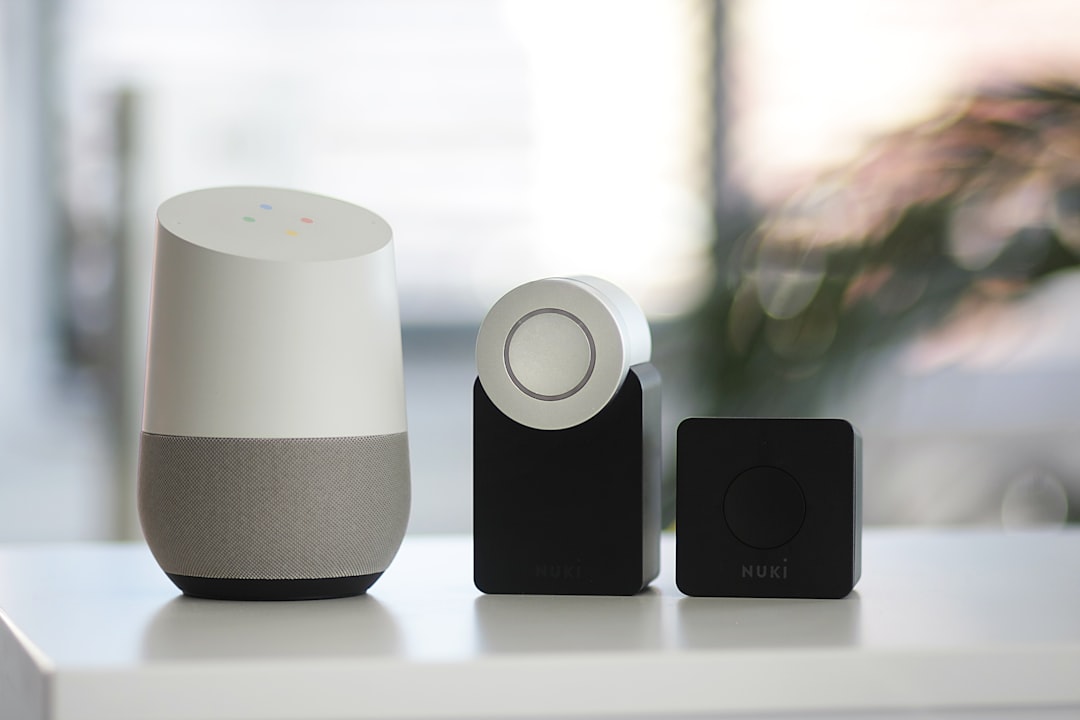
Direct answer: A HomeKit device usually reports “already paired” because it still belongs to Apple Home, another HomeKit controller, or a previous Home Assistant pairing record. HomeKit accessories generally accept only one controller pairing at a time. First identify the current owner, remove the accessory from that controller, wait for it to become discoverable, and pair it with Home Assistant’s HomeKit Device integration. Factory reset is a last resort because it can erase Wi-Fi or Thread credentials, scenes, vendor settings, and automations.
Symptoms and scope
- Home Assistant discovers the accessory but pairing fails with an already-paired or unavailable message.
- The HomeKit code is accepted, then setup stops.
- The device still appears in Apple Home or another Home Assistant installation.
- A restored Home Assistant instance sees the accessory but cannot control it.
- The accessory was removed from Apple Home but does not appear in Home Assistant.
- A Thread accessory keeps returning to an old Thread network.
This guide concerns importing a physical HomeKit accessory into Home Assistant with the HomeKit Device integration, formerly called HomeKit Controller. It is different from HomeKit Bridge, which exports Home Assistant entities to Apple Home. Confusing the two integrations can send troubleshooting in the wrong direction.
How HomeKit ownership works
A HomeKit accessory establishes an encrypted pairing relationship with one controller. The controller might be an Apple Home, Home Assistant, or another compatible ecosystem. Adding a device to Apple Home and then trying to import it directly into Home Assistant without removing it from Apple Home normally fails because the accessory is still owned.
The official Home Assistant documentation describes a useful Wi-Fi workflow: use Apple Home or the manufacturer’s app to place the device on the local network, then remove it from Apple Home. Removing it opens the HomeKit pairing again while the accessory may remain connected to Wi-Fi. Home Assistant can then discover and pair it locally.
Thread devices require extra care. Removing a device from Apple Home without resetting it can leave its Thread credentials intact, allowing Home Assistant to discover it over the existing Apple Thread network. Resetting it may erase those credentials and require Bluetooth commissioning or provisioning onto Home Assistant’s preferred Thread network.
Before you begin
- Find the eight-digit HomeKit pairing code on the device, packaging, manual, or display.
- Record the device’s current name, room, vendor app account, and automations.
- Confirm whether it connects through Wi-Fi, Ethernet, Bluetooth, or Thread.
- Back up Home Assistant before removing an existing integration or changing Thread networks.
- If it controls a lock, garage door, alarm, valve, heater, or other safety-sensitive equipment, keep the manufacturer’s supported control method available throughout the change.
Home Assistant’s documentation states that a lost HomeKit pairing code cannot be recovered by Home Assistant. Contact the manufacturer if the code is missing. Do not repeatedly guess codes; some accessories impose timeouts.
Step 1: Make sure you are using the right integration
Open Settings → Devices & services. A discovered accessory intended for import should appear under HomeKit Device. HomeKit Bridge is not the pairing destination for a physical accessory; it exposes existing Home Assistant entities to Apple Home.
If the accessory already exists as a vendor integration—such as a local manufacturer integration—decide which method you actually want. Do not pair through multiple paths merely to fix discovery. Duplicate integrations can create duplicate entities and conflicting automations.
Step 2: Identify the controller that currently owns the accessory
Check Apple Home, any previous Home Assistant server, family members’ homes, and vendor gateways. A device visible in Apple Home is paired even if it is offline. If you migrated Home Assistant, the old instance or an incomplete restore may still hold the pairing relationship.
Do not delete the Home Assistant device entry first unless you are certain the accessory can be unpaired or reset. Deleting the controller record while the accessory retains its pairing can leave the two sides out of sync.
Step 3: Remove it cleanly from Apple Home
For a Wi-Fi or Ethernet accessory currently in Apple Home:
- Confirm it is online in Apple Home.
- Record any Apple Home scenes or automations using it.
- Use Apple Home’s remove-accessory action.
- Keep the accessory powered and connected to the same LAN as Home Assistant.
- Wait several minutes for HomeKit discovery to update.
- Check Home Assistant’s discovered integrations again.
The important distinction is remove versus factory reset. Removal ends Apple Home’s controller pairing. A reset also clears the accessory’s local configuration and may be unnecessary for an IP device.
Step 4: Check local discovery
HomeKit IP accessories are normally discovered through local multicast DNS. Being able to ping the device does not prove mDNS can cross a VLAN, guest network, wireless isolation boundary, VPN, or container network. Place Home Assistant and the accessory on the same local network temporarily if possible.
Check these conditions:
- Client isolation or guest-network isolation is disabled for the test.
- UDP multicast traffic is not blocked between the relevant interfaces.
- The Home Assistant host has normal local-network access.
- A container or VM network exposes multicast correctly.
- No stale DNS override sends the accessory or Home Assistant through a public route.
Change one network condition at a time. Avoid permanently opening broad inter-VLAN access just to make discovery work; a properly scoped mDNS reflector and the required device traffic are safer.
Step 5: Pair an IP accessory
- Open the discovered HomeKit Device card in Settings → Devices & services.
- Select Configure.
- Enter the HomeKit code exactly as printed.
- Wait for the accessory to exchange keys and create entities.
- Assign it to an area and finish setup.
If the code fails immediately, confirm you are using the HomeKit code rather than a Matter code, serial number, Wi-Fi password, or vendor setup PIN. Preserve the dashes or remove them only as the interface requests.
Step 6: Handle Bluetooth accessories
A Bluetooth HomeKit accessory must be within reliable radio range of Home Assistant or a supported ESPHome Bluetooth proxy. Battery devices may need to be awakened during pairing. Bluetooth pairing can take longer than IP pairing, so do not restart the accessory repeatedly while the exchange is active.
Verify the Bluetooth adapter or proxy works with another known device. If the accessory was previously paired or joined to Thread, the official documentation advises resetting it before Bluetooth-based setup so old controller or Thread information does not interfere. Follow the manufacturer’s exact reset sequence and confirm the device re-enters pairing mode.
Step 7: Handle Thread accessories without destroying the working mesh
If a HomeKit-over-Thread accessory currently works in Apple Home and you want it to stay on Apple’s Thread network, remove it from Apple Home but do not reset it. The device can retain its Thread details and may then be discovered by Home Assistant over Thread. Pair it using the printed HomeKit code.
If instead you want to move it onto Home Assistant’s preferred Thread network, first verify a working border router and known credentials. Pair through Bluetooth if required, then use the device configuration to provision the preferred Thread credentials. Do not delete Thread datasets or reset border routers to solve a single accessory problem.
Step 8: Recover after a Home Assistant migration or partial restore
A complete Home Assistant backup normally carries integration configuration, but a partial restore or manually rebuilt instance may not contain the old HomeKit pairing keys. The accessory can remain paired to keys the new instance does not have.
- Confirm whether a complete backup from the working instance exists.
- Prefer restoring the relevant known-good backup over resetting every accessory.
- If restoration is not possible, remove the accessory from its current controller through the supported UI.
- Reset only the individual accessory that cannot be cleanly unpaired.
- Pair one device and verify stability before repeating the process.
If pairing succeeds but no entities appear
Home Assistant supports many common HomeKit domains, including lights, switches, locks, climate devices, covers, fans, sensors, and alarms. The official documentation notes that an unsupported device type may appear in the Device Registry without creating usable entities. That is different from a pairing failure.
Check the device page, disabled entities, diagnostic entities, and integration documentation. Do not repeatedly remove and re-pair a successfully paired accessory because its service type is unsupported.
How to verify the fix
- Confirm the accessory is listed under HomeKit Device.
- Operate one non-destructive control in Home Assistant.
- Physically verify the device responds.
- Change the device state outside Home Assistant and confirm a push update returns.
- Restart Home Assistant once and confirm the device reconnects.
- For Thread, verify the reported Thread status after the mesh settles.
Rollback and recovery
If Home Assistant pairing fails after clean removal, you may re-add the accessory to Apple Home using its original pairing code, provided it remains in pairing mode. If the accessory was factory-reset, restore vendor settings and automations deliberately. For a security device, follow the manufacturer’s recovery process and test all physical safety functions.
When to escalate
Collect the Home Assistant version, device manufacturer and model, firmware, connection type, integration diagnostics, and relevant logs with secrets removed. Contact the manufacturer if the pairing code is missing or the reset process does not reopen pairing. Report reproducible integration failures to Home Assistant only after confirming the device is unpaired and discoverable.
Prevention
- Store HomeKit codes securely before installation.
- Document which controller owns each accessory.
- Back up Home Assistant before migrations.
- Choose a Thread network intentionally and keep its credentials recoverable.
- Avoid unnecessary factory resets.
- Do not confuse HomeKit Device with HomeKit Bridge.
Source
Last reviewed: September 8, 2026.
Related Troubliq guides: Thread credentials are synced but commissioning fails, Matter device pairs but shows unavailable, and the safe diagnostic method.
Decision guide: remove, reset, or restore?
Choose the least disruptive path that matches the evidence. If the accessory is visible and controllable in Apple Home, remove it from Apple Home first; do not reset it. If it is an IP accessory that was added to Wi-Fi through Apple Home, keep it powered after removal so it can remain on the network and advertise for a new controller. If it is a Thread accessory that should remain on an Apple Thread network, removal without reset preserves the best chance of retaining those network credentials.
Use a factory reset only when the accessory cannot be removed from the controller that owns it, its previous controller no longer exists and no usable backup remains, or the manufacturer explicitly requires a reset to reopen pairing. Use restoration instead when the problem began after migrating Home Assistant and a complete backup from the working controller is available. Restoration can recover the pairing keys and prevent a house-wide reset campaign.
After each action, wait for discovery to settle and test before escalating. Removing, resetting, restoring, and changing VLAN rules at the same time destroys the evidence needed to identify the real cause.
How to preserve the original controller relationship before a reset
Before resetting an accessory, identify every place where it may already be paired. Check Apple Home on each household member’s device, any older Home Assistant installation, vendor apps, and previous hubs that may still be powered. A HomeKit pairing record belongs to the controller’s Home data, not merely to the phone used during setup. Removing an app, changing phones, or deleting an integration card does not necessarily release the accessory.
If the accessory still responds through Apple Home, record its room, name, scenes, automations, and any bridge or Thread border router involved. Remove it from the owning controller while it is powered and reachable, then wait for that removal to complete before attempting another pairing. This clean removal is preferable to a factory reset because it gives the controller an opportunity to discard its relationship and can preserve network settings that the accessory is designed to retain.
For a bridged accessory, determine whether the HomeKit code belongs to the bridge rather than the individual endpoint. Resetting a child bulb, sensor, or switch may not clear the bridge-level pairing and can create extra recovery work. Consult the manufacturer’s instructions for the exact model because button sequences, LED meanings, and reset depths differ.
Network checks when the pairing code is accepted but setup still fails
An “already paired” message can be followed by a second problem: the old pairing is cleared, but discovery or communication fails. Confirm that the Home Assistant host and accessory can exchange local traffic. Multicast DNS must cross the relevant Wi-Fi or VLAN boundary, client isolation must not block peers, and firewall rules must permit the local path. For Thread accessories, confirm that a compatible border router is operational and that the phone used for commissioning has Bluetooth and local-network permissions.
Do not merge these stages into one diagnosis. First prove that ownership was released; then investigate discovery, networking, or Thread credentials. This separation prevents repeated resets from hiding the actual fault.
Evidence to collect for a useful support request
If the accessory remains unavailable, record the exact model, firmware, connection type, Home Assistant version, installation type, integration name, and the complete redacted error. State whether the device is visible in Apple Home, the vendor app, Home Assistant discovery, or a network scan. Include the order of removal and pairing attempts, but never share HomeKit setup codes, QR codes, Wi-Fi credentials, diagnostic archives containing secrets, or account tokens.
Find your next troubleshooting path
Use the related guide that matches the next confirmed layer of the failure. Avoid changing unrelated systems at the same time.