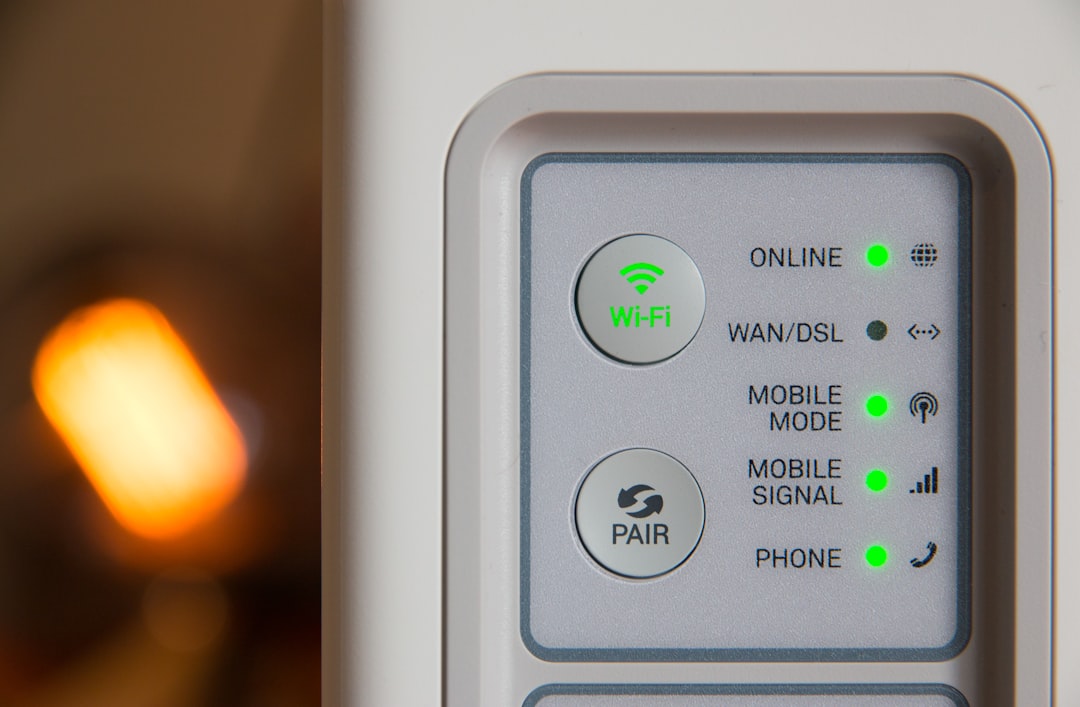
Direct answer: If an ESPHome device is still connected to Wi-Fi but appears offline in Home Assistant, the failure is usually between Home Assistant and the device’s native API—not necessarily the Wi-Fi connection itself. Confirm the device’s current IP address, test TCP reachability to the native API (normally port 6053), check the encryption key, and inspect live logs before reflashing or resetting anything.
What “on Wi-Fi but offline” actually means
A router may show a device in its client or DHCP list even when the device has stopped responding. The entry can also be stale. Home Assistant communicates with ESPHome through a persistent local native-API connection, so Wi-Fi association alone does not prove that the API is running or reachable.
Before changing anything
- Record the device name, current IP address, MAC address, board model, and power source.
- Note the Home Assistant and ESPHome versions and when the problem began.
- Save the current ESPHome YAML and encryption key securely.
- Do not factory-reset, erase, or reflash the device yet.
1. Confirm the device is truly online
Refresh the router or access-point client list and compare the current IP with the address configured in Home Assistant. Look for frequent reconnects, a rapidly resetting uptime, weak signal, or a DHCP address that changed. A failing USB cable or undersized power supply can allow brief Wi-Fi connections while the application repeatedly restarts.
2. Test the address Home Assistant is using
Open Settings → Devices & services → ESPHome, select the affected device, and use Reconfigure if the saved hostname or IP address is wrong. The official integration supports changing the address without deleting and recreating the device.
If a hostname such as device-name.local fails but the current IP works, the problem is probably mDNS or local name resolution. Correct the network or DHCP reservation instead of hard-coding a temporary address everywhere.
3. Check the native API path
ESPHome normally exposes its native API on TCP port 6053. Home Assistant and the device must be able to communicate locally on that path. Guest-network isolation, wireless client isolation, VLAN rules, firewall changes, or routing changes can leave internet access working while blocking Home Assistant.
- Test from the same network segment as Home Assistant when possible.
- Check only the specific path between Home Assistant and the device.
- Do not disable the firewall broadly or expose the API to the public internet.
4. Verify API configuration and encryption
Confirm that the device YAML still contains the api: component. If API encryption is enabled, Home Assistant must have the matching 32-byte base64 Noise pre-shared key. A device can join Wi-Fi successfully while Home Assistant rejects the API connection because the stored key no longer matches.
If the key changed, use the integration’s reconfiguration flow and enter the correct key. Do not post the key in forums, screenshots, or public logs.
5. Read live logs before restarting
In ESPHome Device Builder, select the device and open LOGS. The official Home Assistant integration also offers an option to subscribe to device logs. Look for:
- successful Wi-Fi association and the assigned IP address;
- native API startup or authentication errors;
- watchdog resets, brownouts, boot loops, or repeated reconnects;
- duplicate-name warnings or mDNS failures;
- deep-sleep messages that explain expected offline periods.
Redact Wi-Fi credentials, API keys, tokens, and public IP addresses before sharing logs.
6. Check for duplicate device names
Each ESPHome device must have a unique ESPHome name. Duplicate names can cause discovery and connection failures. This is different from the friendly name shown in the interface. If hardware was replaced using the same configuration, follow Home Assistant’s name-conflict repair flow instead of deleting both devices.
7. Restart in the least-destructive order
- Reload or reconfigure only the affected ESPHome integration entry.
- If safe, power-cycle the low-voltage ESPHome device once.
- Restart network equipment only if several devices show the same network symptom.
- Compile or reflash only after validating the YAML and preserving a known-good backup.
- Use factory erase only as a final recovery step.
How to verify the fix
Confirm that Home Assistant reconnects, entity states update without delay, and live logs show a stable API client connection. Trigger one harmless command and verify both the physical response and the returned state. Watch the device for at least several minutes to make sure it is not reconnecting repeatedly.
If it still fails
Collect the board model, ESPHome and Home Assistant versions, current IP behavior, power details, relevant redacted logs, network layout, and the exact error from the integration. That evidence distinguishes an API authentication problem from name resolution, isolation, unstable power, firmware failure, or a deep-sleep configuration.
Official references
- Home Assistant ESPHome integration and troubleshooting
- ESPHome native API component
- ESPHome troubleshooting guide
Last reviewed: September 5, 2026.
Related Troubliq guides
Find your next troubleshooting path
Use the related guide that matches the next confirmed layer of the failure. Avoid changing unrelated systems at the same time.
Confirm the exact failure boundary
An ESPHome node can remain associated with Wi-Fi while Home Assistant cannot establish the native API connection. Verify the device’s current address, then compare basic reachability with the integration state and ESPHome logs. A successful ping or web-server response proves only part of the path; it does not prove that API authentication, encryption, name resolution, routing, and the configured port are correct.
Determine whether one node or every ESPHome device is affected. A single failure points toward that device’s address, power, firmware, encryption key, or local route. Several devices failing together points toward Home Assistant networking, DNS, multicast discovery, VLAN policy, a firewall change, or the integration environment.
Verify addressing and name resolution
Compare the address Home Assistant is using with the current DHCP lease and the address printed in the device log. If it changed, correct the integration target or create a DHCP reservation. Avoid manually assigning an address inside the DHCP pool because a future collision can create an intermittent failure that looks like unstable firmware.
If the integration uses a .local hostname, test resolution from the same network environment as Home Assistant. Multicast DNS can work from a phone on the main LAN while failing from a container, virtual machine, or isolated VLAN. That difference explains why the device looks online to one client but unavailable to Home Assistant.
Check API credentials without exposing secrets
Review the ESPHome configuration for the native API and encryption settings. Home Assistant and the device must use matching credentials. Restoring an older backup, copying a configuration, adopting a device from another dashboard, or reflashing older firmware can leave Wi-Fi working while the API rejects the connection.
Never publish encryption keys, Wi-Fi passwords, fallback access-point credentials, or an unredacted secrets file. If a key must be rotated, update both sides deliberately and keep a known-good local configuration or supported physical recovery method in case an over-the-air update fails.
Use logs before reflashing
Match ESPHome log timestamps with Home Assistant’s connection errors. Look for repeated boots, API authentication failures, socket disconnects, watchdog resets, or network roaming. A device that connects to Wi-Fi briefly during a reboot loop may appear continuously present in an access-point list while never remaining available long enough for Home Assistant.
Preserve the YAML and a known-good firmware image before changing configuration. Recompile or reflash only after the evidence points to firmware or API configuration. Reflashing before collecting logs can remove the clearest evidence and may make recovery harder.
Verify the repair over time
After reconnection, test sensor updates and commands through several normal reporting intervals. Restart only the device and confirm that Home Assistant reconnects automatically. During a maintenance window, confirm that it also reconnects after Home Assistant restarts. A few seconds of availability is not enough to prove stability.
Record the confirmed cause, device address, firmware version, signal conditions, and the single change that resolved the problem. If the device later drops while remaining associated with Wi-Fi, return to power stability, access-point roaming, API logs, and local routing instead of deleting and recreating the integration immediately.
Detailed evidence checklist for ESPHome device is offline in Home Assistant but still on Wi-Fi
Before another change, create a short incident record. Include the exact time the symptom appeared, what the system was doing, the last successful action, and every update or network change made during the previous day. Record the Home Assistant release, installation type, integration version, device model, firmware, connection method, current address, and relevant entity IDs. Screenshots are useful for visible states, but copy the exact error text because screenshots may crop the detail needed to search logs.
Compare the failing item with one known-good item that uses the same path. If both fail, move outward toward shared services such as the integration, coordinator, add-on, DNS, router, cloud account, or Home Assistant host. If only one fails, stay close to that device: power, signal, address, credentials, firmware, permissions, and configuration. This comparison prevents a single-device problem from turning into an unnecessary system-wide rebuild.
Network tests that prove the failing layer
Use tests in layers. Confirm the address is current in the router or DHCP server. Confirm the Home Assistant host or container resolves the same name and reaches the intended address. Then test the actual documented service, port, or protocol. A dashboard loading on a phone proves only the phone’s path. A successful ping proves basic reachability, not authentication, WebSocket upgrades, multicast discovery, API encryption, event subscriptions, or application permissions.
For segmented networks, document source VLAN, destination VLAN, direction, protocol, and port before editing a firewall rule. Test the smallest temporary exception and remove it if it did not help. Discovery traffic and control traffic may use different mechanisms. Seeing a device in discovery does not prove Home Assistant can maintain a working session.
Configuration comparison procedure
Export or photograph the current configuration without exposing secrets. Compare it with official documentation field by field: host, port, account, region, project, encryption setting, device identifier, and optional switches. Watch for trailing spaces, uppercase versus lowercase account names, obsolete hostnames, restored encryption keys, or an account belonging to the wrong home or region.
Use Reconfigure or Reauthenticate before deleting an integration. Preserve entity IDs and note every automation, dashboard, script, scene, or helper that refers to them. If replacement becomes necessary, take a backup and map old entities to replacements. That makes rollback controlled rather than leaving broken references.
Power, radio, and timing checks
Do not interpret every unavailable state as software failure. Low-voltage devices may stay partly online while unstable power causes resets. Battery devices sleep and report on their own schedule. Wi-Fi and Bluetooth devices can associate yet fail at the application layer. Zigbee and Z-Wave devices depend on routes, radio conditions, and powered repeaters. Match the test to the technology instead of repeatedly pressing Reload.
Allow enough time after each test. Cloud polling, sleepy devices, retained MQTT messages, mesh repair, Bluetooth advertisements, and DHCP changes do not update instantly. Define the expected interval, then wait through at least two normal cycles. If availability returns briefly, capture the next disconnect in logs instead of declaring success.
Log-reading workflow
Synchronize clocks and reproduce the problem once. Start with the first warning or error at that timestamp; later messages may be consequences. Group errors by layer: name resolution, timeout, refused connection, TLS certificate, unauthorized account, invalid token, missing permission, unsupported capability, malformed payload, device timeout, or rate limit. Each group suggests a different next action.
Turn debug logging off after reproduction. Large files consume storage and bury the event. Redact tokens, passwords, keys, email addresses, public addresses, precise locations, and unnecessary unique identifiers. Keep the unredacted copy private for comparison with later tests.
Safe change order
- Correct time, power, cabling, or an obviously stale address.
- Reload only the affected integration when documentation supports it.
- Use Reconfigure or Reauthenticate without deleting the entry.
- Restart only the affected device or add-on during a safe window.
- Restart Home Assistant when several components share the symptom or a change requires it.
- Update software after reading release notes and preserving rollback.
- Delete, exclude, reset, or rebuild only after safer checks prove it necessary.
Post-repair validation
Verify both directions. Confirm Home Assistant receives a fresh state, send one harmless command, and confirm the physical response. Check the returned state, logbook, history, and automation trace. Restart the affected component and verify automatic reconnection. During a maintenance window, confirm the repair survives a normal Home Assistant restart.
Monitor long enough to cover the original pattern. If failure occurred overnight, after DHCP renewal, deep sleep, or token expiry, a five-minute test is insufficient. Record the confirmed cause and exact corrective change. Remove temporary firewall rules, extra logging, duplicate test integrations, and unused credentials.
When to stop and escalate
Stop if hardware overheats, power is unstable, storage reports errors, a controller backup fails, credentials are rejected across services, or firmware may be damaged. Escalate with versions, timestamps, topology, redacted logs, the first meaningful error, and results of each safe test. Do not repeat destructive steps while waiting for help.
A strong report answers four questions: What still works? What exactly fails? What changed immediately beforehand? Which test most clearly separates the causes? Those answers help maintainers diagnose the correct layer.