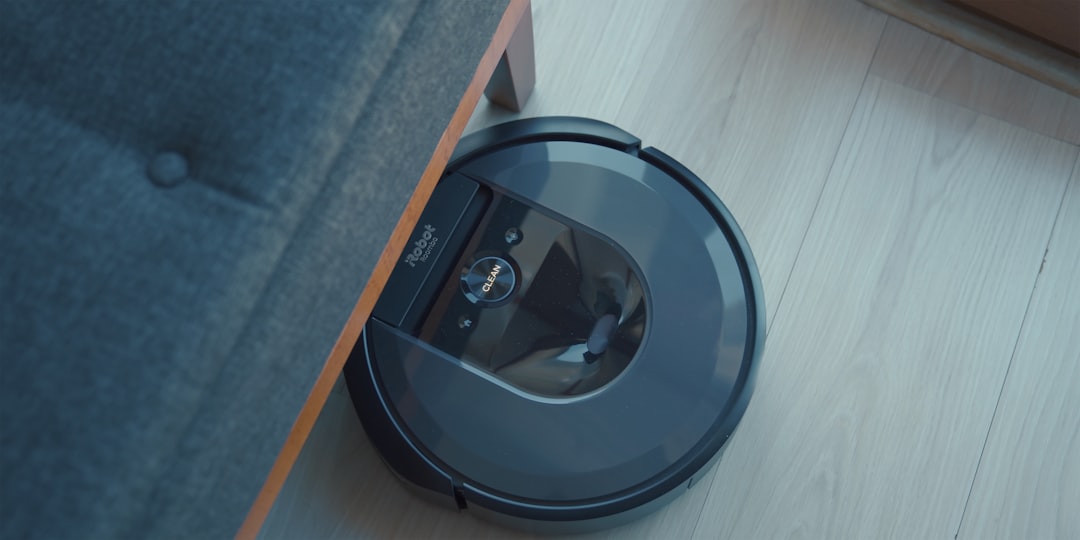
Direct answer: Start by checking whether the vacuum works in the official Roborock app and whether Home Assistant is asking for reauthentication. Temporary vacuum disconnects can make entities unavailable briefly, but repeated authentication prompts or “Failed to get Roborock home data” require a different path. Do not delete the integration first. Confirm account region, verification-code delivery, app authorization, network reachability, and logs; then reauthenticate the existing entry so entity identities are preserved.
This guide addresses Roborock devices that are unavailable or repeatedly require reauthentication in Home Assistant. It is designed to preserve working configuration and evidence before any reset, deletion, or re-pairing. Work in order and stop when the first confirmed cause is corrected. Screens and menu labels can vary by Home Assistant release and installation method.
Symptoms and scope
Use the following signs to decide whether this guide matches your problem. Similar-looking failures can come from different layers, so record what still works as carefully as what fails.
- All Roborock entities become unavailable while the official app still controls the vacuum.
- Settings → Devices & Services shows Reconfigure or Reauthenticate for Roborock.
- Setup fails after entering the emailed code, sometimes with “unexpected error” or “failed to get home data.”
- The map stops updating while basic commands still work, or the integration recovers after the vacuum reconnects.
- The problem returns every few hours or days despite successful reauthentication.
Most likely causes, ranked
Start with the causes that fit the evidence. Do not apply every fix at once: simultaneous changes make it impossible to know what solved the problem and can create a second failure.
- 1. The vacuum briefly lost Wi-Fi or internet access; the official documentation notes short random disconnects can temporarily mark the integration unavailable.
- 2. The Roborock account authorization or token is expired, revoked, region-mismatched, or replaced by another login flow.
- 3. The verification code is delayed, expired, copied with whitespace, or issued for a different email/account region.
- 4. DNS, firewall, ad-blocking, VLAN, or outbound filtering blocks the cloud endpoints needed for account and home-data discovery even when local communication later handles some commands.
- 5. The vacuum is sleeping, rebooting, updating firmware, or associated with weak 2.4 GHz Wi-Fi.
- 6. A Core or library regression affects a specific model or authentication flow; current logs and issue trackers are needed before destructive changes.
Safe diagnostic procedure
Before beginning, make a current backup when the procedure could affect configuration or stored data. Record the Home Assistant version, installation type, device or app version, the first failure time, and the last known working change. Redact secrets from every screenshot and log excerpt.
Step 1: Capture the exact failure
Confirm the official Roborock app can see and control the same vacuum using the same account. Note whether maps, rooms, status, and commands work. If the app also fails, fix the account, vacuum Wi-Fi, or Roborock service first; Home Assistant cannot repair a vendor-side outage.
Interpretation: if this step changes the symptom, repeat the same controlled test once before moving on. If nothing changes, restore any temporary setting and continue. Keep a short note of the time, action, and result; that record prevents circular troubleshooting.
Step 2: Protect the current state
Open the Roborock device and integration pages in Home Assistant. Record the exact unavailable entities and any Repair, Reconfigure, or Reauthenticate prompt. Do not remove the device, rename entities, or reset the vacuum. Those actions erase useful evidence and can create duplicate entities later.
Interpretation: if this step changes the symptom, repeat the same controlled test once before moving on. If nothing changes, restore any temporary setting and continue. Keep a short note of the time, action, and result; that record prevents circular troubleshooting.
Step 3: Verify the affected layer
Review Settings → System → Logs for entries from the Roborock integration around the first failure. Separate authentication, connection, home-data, map, and model-specific errors. Redact email addresses, tokens, map data, coordinates, and local/public IP addresses before sharing logs.
Interpretation: if this step changes the symptom, repeat the same controlled test once before moving on. If nothing changes, restore any temporary setting and continue. Keep a short note of the time, action, and result; that record prevents circular troubleshooting.
Step 4: Test the least-destructive cause
If Home Assistant offers reauthentication, use it on the existing integration entry. Request one fresh code, use the newest code promptly, and avoid repeated requests that can invalidate earlier codes or trigger rate controls. Verify the selected account and region match the official app.
Interpretation: if this step changes the symptom, repeat the same controlled test once before moving on. If nothing changes, restore any temporary setting and continue. Keep a short note of the time, action, and result; that record prevents circular troubleshooting.
Step 5: Inspect configuration and identity
Check whether another person, automation, password manager, or app session recently changed the Roborock password or revoked authorizations. In the official app, review account and third-party authorization controls. Revoke and recreate authorization only when the documented flow calls for it and you understand the effect.
Interpretation: if this step changes the symptom, repeat the same controlled test once before moving on. If nothing changes, restore any temporary setting and continue. Keep a short note of the time, action, and result; that record prevents circular troubleshooting.
Step 6: Check network, power, or permissions
Test DNS and outbound connectivity from the Home Assistant host, not only from a phone on another network. Temporarily observe whether Pi-hole, AdGuard, firewall, parental controls, or VLAN policies log blocked Roborock requests. Do not permanently disable security controls; create the narrowest justified rule.
Interpretation: if this step changes the symptom, repeat the same controlled test once before moving on. If nothing changes, restore any temporary setting and continue. Keep a short note of the time, action, and result; that record prevents circular troubleshooting.
Step 7: Apply the narrow repair
Check the vacuum’s Wi-Fi strength, DHCP lease, clock, and firmware status. Reserve a stable address if your network design benefits from it, but do not assume an IP reservation fixes cloud authentication. Reboot the vacuum and network only one component at a time so the result remains interpretable.
Interpretation: if this step changes the symptom, repeat the same controlled test once before moving on. If nothing changes, restore any temporary setting and continue. Keep a short note of the time, action, and result; that record prevents circular troubleshooting.
Step 8: Observe through a full cycle
Update Home Assistant only after reading the release notes and making a backup. If the failure began immediately after an update and logs match a current upstream issue, preserve the configuration and follow the issue rather than repeatedly deleting and adding the integration.
Interpretation: if this step changes the symptom, repeat the same controlled test once before moving on. If nothing changes, restore any temporary setting and continue. Keep a short note of the time, action, and result; that record prevents circular troubleshooting.
Installation and environment branches
Home Assistant OS or appliance-style installs
App works, Home Assistant fails: focus on authorization, Home Assistant egress, logs, and the current integration version.
Container, network, or account variation
App and Home Assistant fail: focus on the vendor account, service status, vacuum connectivity, and firmware.
Partial failure versus complete failure
Only the map fails: treat map data as a separate path from basic vacuum entities; capture the map-specific error.
Multi-device or multi-hop environments
One vacuum fails in a multi-vacuum home: compare model, firmware, Wi-Fi, sharing, region, and ownership rather than resetting the working devices.
What not to do
- Do not delete the integration, device, database, app registration, or proxy configuration merely because it is the fastest visible button. Deletion can remove evidence and create new entity identities.
- Do not paste passwords, tokens, encryption keys, exact home coordinates, public URLs with credentials, or unredacted logs into a forum or support ticket.
- Do not disable firewalls, TLS verification, authentication, or other security controls as a permanent workaround. A useful test must be narrow, timed, and reversed.
- Do not make several network, software, and device changes together. Change one variable, observe the result, and keep the working rollback path.
- Do not assume a restart is a diagnosis. A restart can temporarily hide timing, memory, radio, storage, or connectivity faults without correcting them.
Verification checklist
After reauthentication or network repair, reload the integration once and wait through a normal update interval. Confirm the main vacuum entity, battery, status, dock, map-related entities, and a safe read-only attribute update. Run one harmless command such as locate only if appropriate. Restart Home Assistant once and verify the integration returns without another prompt. Continue observing through a vacuum sleep/wake cycle; a five-minute success is not enough for a problem that previously returned daily.
- The original symptom is gone under the same conditions that previously reproduced it.
- The relevant log has no new matching error after a normal update or restart cycle.
- Related entities, history, automations, or remote access still work.
- The repair survives one controlled restart of the affected component.
- Temporary troubleshooting exceptions have been removed or documented.
Rollback and recovery
If removal becomes unavoidable, record entity IDs, automation references, device name, rooms, and customization first, then make a backup. Re-add with the same owner account and region. Repair broken automation targets deliberately rather than accepting silent duplicates. A factory reset of the vacuum is a last resort and usually unnecessary for a Home Assistant authentication failure.
If the evidence points to failing hardware, a vendor outage, an upstream regression, or corrupted data that matters, stop improvising. Preserve the backup and diagnostic record, then escalate with the exact version, timestamp, error, minimal reproduction, and steps already tested. That produces a safer and faster answer than repeated resets.
Prevention
- Keep the Roborock owner account and region documented securely.
- Avoid repeated verification-code requests.
- Maintain stable 2.4 GHz coverage around the dock and cleaning area.
- Log firewall blocks before creating narrow allow rules.
- Back up Home Assistant before Core upgrades.
- Track recurring prompts with timestamps to distinguish token expiry from random Wi-Fi loss.
Schedule a brief review after the next Home Assistant update or device firmware change. Confirm that the repaired path still works, remove obsolete workarounds, and update your private documentation. Prevention is most effective when it records why a setting exists, not just its value.
Diagnostic worksheet
For Roborock devices that are unavailable or repeatedly require reauthentication in Home Assistant, write down five facts before asking for help: the exact error, the first failure time, the last working time, the smallest action that reproduces it, and the layer that still works. Add the Home Assistant Core version, installation type, relevant device or app firmware, network path, and whether the issue survives a restart. This worksheet separates a repeatable defect from a transient outage.
If you observe: All Roborock entities become unavailable while the official app still controls the vacuum
Confirm when this began and whether it affects one entity, one device, one integration, or the whole installation. Compare the result on the same network and, when relevant, through the alternate path. Then use the matching diagnostic step above. Do not jump to recovery until the observation is repeatable or the logs identify the failing layer.
If you observe: Settings → Devices & Services shows Reconfigure or Reauthenticate for Roborock
Confirm when this began and whether it affects one entity, one device, one integration, or the whole installation. Compare the result on the same network and, when relevant, through the alternate path. Then use the matching diagnostic step above. Do not jump to recovery until the observation is repeatable or the logs identify the failing layer.
If you observe: Setup fails after entering the emailed code, sometimes with “unexpected error” or “failed to get home data
Confirm when this began and whether it affects one entity, one device, one integration, or the whole installation. Compare the result on the same network and, when relevant, through the alternate path. Then use the matching diagnostic step above. Do not jump to recovery until the observation is repeatable or the logs identify the failing layer.
If you observe: The map stops updating while basic commands still work, or the integration recovers after the vacuum reconnects
Confirm when this began and whether it affects one entity, one device, one integration, or the whole installation. Compare the result on the same network and, when relevant, through the alternate path. Then use the matching diagnostic step above. Do not jump to recovery until the observation is repeatable or the logs identify the failing layer.
If you observe: The problem returns every few hours or days despite successful reauthentication
Confirm when this began and whether it affects one entity, one device, one integration, or the whole installation. Compare the result on the same network and, when relevant, through the alternate path. Then use the matching diagnostic step above. Do not jump to recovery until the observation is repeatable or the logs identify the failing layer.
Frequently asked questions
Should I delete and add everything again?
Usually not. Re-adding can change entity IDs, erase evidence, and hide the original cause. Use it only after backup, documentation, and the narrower checks in this guide.
Can I ignore the error if it starts working again?
A single brief interruption may be harmless, but a recurring error deserves timestamps and logs. Repetition after the same event often reveals a network, storage, power, permission, or token lifecycle problem.
Is updating Home Assistant always the fix?
No. Updates can contain fixes, but they also change dependencies and behavior. Read release notes, back up first, and match the error to a known fix before treating an update as diagnosis.
How much log information should I share?
Share the smallest relevant window around the failure, with secrets and personal data removed. Include versions and the exact action that caused the event. Avoid uploading complete logs publicly.
When should I escalate?
Escalate when safety, important data, repeated corruption, an upstream regression, or an account-side failure is involved, or when the least-destructive checks produce a clear error you cannot resolve.
Sources and review notes
Photo: Onur Binay on Unsplash. Last reviewed: September 22, 2026. Official documentation is the authority for supported configuration. Community and issue reports are useful for identifying recurring symptoms but do not prove that every installation has the same cause.
- https://www.home-assistant.io/integrations/roborock/
- https://github.com/home-assistant/core/issues/147427
- https://www.home-assistant.io/docs/configuration/troubleshooting/
Continue with the Device Unavailable Diagnostic, the Smart-Home Diagnostic Decision Tree, or the Home Assistant Error Decoder when the symptom crosses more than one integration.