A Zigbee device that suddenly shows Unavailable in Home Assistant after a power outage is not necessarily broken. The outage may have restarted the coordinator, router devices, or the integration in a different order. Work through these checks before removing the device or rebuilding your Zigbee network.
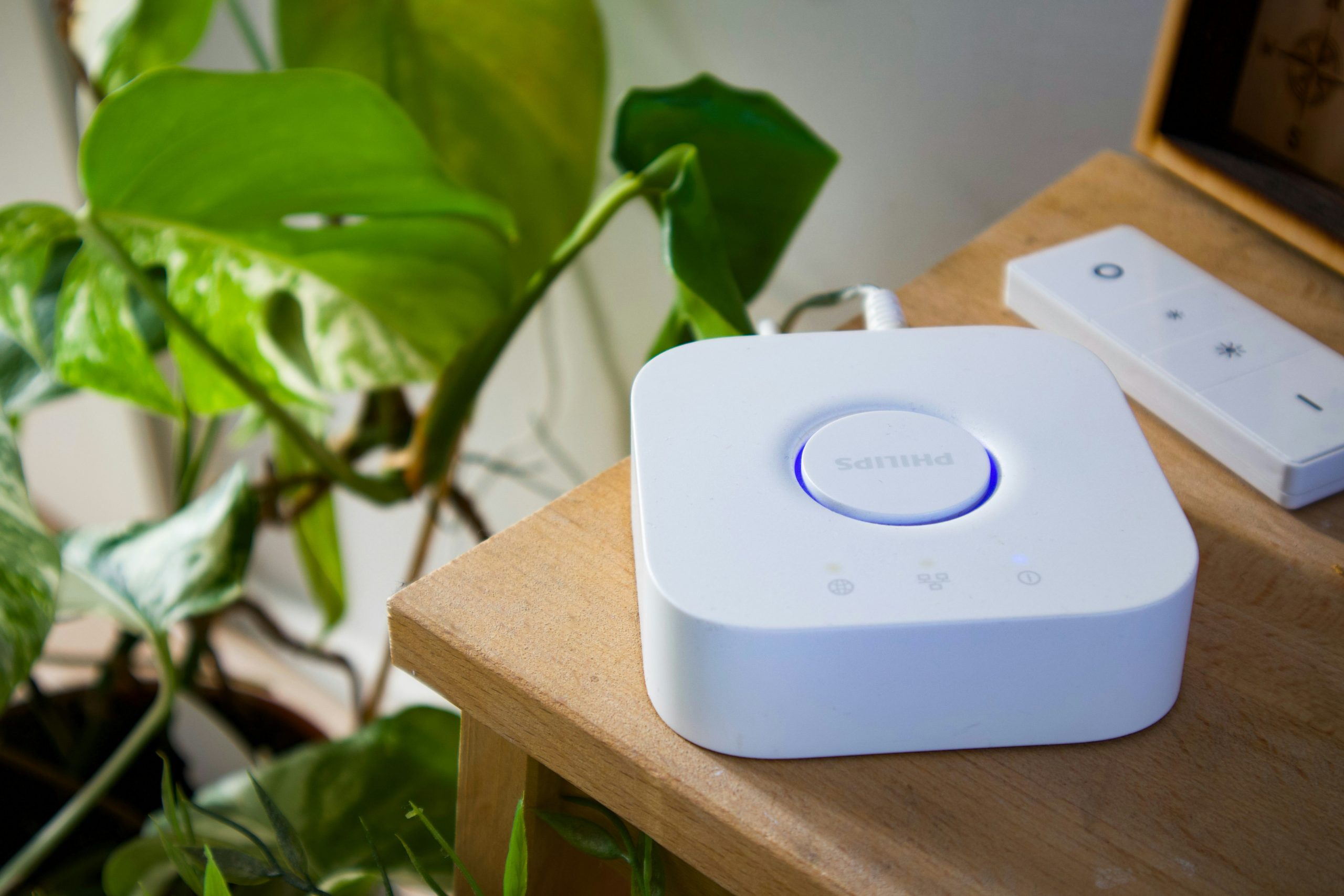
1. Check whether the coordinator is online
Open the integration you use—ZHA or Zigbee2MQTT—and confirm that it is loaded and connected. If you use a USB coordinator, check that Home Assistant can still see its serial device. A changed USB path, loose connection, or coordinator that did not restart cleanly can make many devices appear unavailable at once.
- Check the integration status and its logs.
- Confirm the coordinator is powered and connected.
- If using USB, inspect the configured serial path and avoid unplugging it while the integration is running.
- Do not change the channel or restore a backup as a first step.
2. Look for a network-wide outage or one missing device
If many Zigbee devices went unavailable together, investigate the coordinator, integration, or power to Zigbee routers first. If only one battery sensor is missing, its battery or radio link may be the problem. Mains-powered Zigbee bulbs and plugs often act as routers; if several are still off after the outage, battery devices may have lost their usual route through the mesh.
3. Restore power in a sensible order
Make sure the coordinator and the Zigbee integration are running, then restore power to any mains-powered Zigbee routers that were switched off. Give the mesh time to settle. Wake a battery-powered sensor using its normal button or wake procedure, if its manufacturer supports one. Avoid repeatedly restarting everything; that makes it harder to tell which change helped.
4. Check logs before re-pairing
In ZHA or Zigbee2MQTT, inspect recent logs for coordinator disconnects, serial-port errors, failed interviews, or repeated communication timeouts. These point to different causes. A serial error suggests a coordinator or connection issue; repeated timeouts for one device suggest a range, battery, interference, or routing issue.
5. When should you re-pair the device?
Only consider re-pairing after the coordinator is stable, the integration is healthy, the device has power, and the logs suggest that the device itself is no longer communicating. Removing a device too early can discard its entity associations and create unnecessary setup work. If you do need to pair again, follow the device manufacturer’s reset instructions and your integration’s pairing procedure.
Quick diagnosis
| What you see | Check first |
|---|---|
| Many devices unavailable | Coordinator, integration, and powered Zigbee routers |
| One battery sensor unavailable | Battery, wake procedure, range, and route |
| Serial-port or adapter error | USB connection, device path, and coordinator status |
| Device returns after waking | Battery-saving behavior and mesh reliability |
Frequently asked questions
Will I lose my Zigbee devices if Home Assistant restarts?
Usually, a normal restart should not require re-pairing. If devices remain unavailable, diagnose the coordinator, integration, power, and radio path before deleting anything.
How long should I wait after power is restored?
Allow the coordinator and integration to become stable and give the mesh a few minutes to recover. Battery-powered devices may need to wake or report in before their status updates.
Bottom line: after a power outage, check the coordinator first, then the integration, powered routers, and individual devices. Re-pair only after those checks point to a device-specific problem.