Troubliq

Smart-home fixes, step by step.

Category: Zigbee, ZHA & Zigbee2MQTT

Troubleshoot Zigbee, ZHA, and Zigbee2MQTT by separating pairing, coordinator, radio-path, interference, routing, interview, and device-firmware faults. Begin with coordinator health and logs, test near the coordinator, protect the existing network backup, and avoid factory resets until the failure layer is known. Zigbee device will not pair with ZHA · Zigbee2MQTT interview fails · ZHA coordinator NCP failed state.

  • Home Assistant Zigbee Devices Keep Going Offline After a Router or Wi‑Fi Change: What to Check

    Home Assistant Zigbee Devices Keep Going Offline After a Router or Wi‑Fi Change: What to Check

    Quick answer: A Wi‑Fi or router change can affect Zigbee reliability even though Zigbee and Wi‑Fi are different protocols. They share parts of the 2.4 GHz band, so channel overlap, a moved Home Assistant host, USB interference, or a changed power setup can expose a weak mesh. Diagnose one layer at a time instead of resetting every device.

    Smart home hub and connected home technology
    Image: James Yarema / Unsplash

    1. Identify what changed

    Write down whether the problem began immediately after replacing the router, changing Wi‑Fi channels, moving the Home Assistant computer, changing USB ports, or losing power. Note whether all Zigbee devices fail together or only battery-powered devices in one area. A simultaneous outage points toward the coordinator, integration, host or radio environment; isolated failures more often suggest routing, battery or signal issues.

    2. Check the Zigbee coordinator and integration

    • In Home Assistant, open the relevant integration (ZHA or Zigbee2MQTT) and confirm it is loaded and the coordinator is available.
    • Check the integration logs for serial-port errors, repeated reconnects, adapter resets or MQTT connection failures.
    • If the coordinator is USB-connected, check that its stable device path is still present and that the host has not moved it to a different port.
    • Use a USB extension cable to move the radio away from the computer, USB 3 devices and metal enclosures if interference is plausible.

    3. Consider Wi‑Fi and Zigbee channel overlap

    Do not change channels blindly. First record the current Zigbee channel and the router’s 2.4 GHz channel. Nearby networks, channel width and actual radio conditions matter. If you decide to change the Zigbee channel, check the documentation for your coordinator and integration first: some devices may need special handling or rejoining, and a channel change can create a second problem if done casually.

    4. Check the mesh before re-pairing

    Make sure mains-powered Zigbee routers—such as compatible smart plugs or bulbs—are powered and have had time to rejoin. A powered-off router can strand battery sensors that depended on it. Test a nearby device and a distant device separately. Replace a weak battery only when the evidence points to that device; do not delete devices from the entity registry just because they are temporarily unavailable.

    5. Verify recovery

    1. Make one change at a time.
    2. Watch the integration logs and device availability for several minutes.
    3. Test both a nearby and a distant device.
    4. Record the fix and any channel or coordinator changes.

    When to escalate

    If the coordinator repeatedly disconnects, capture the relevant log lines and identify your integration (ZHA or Zigbee2MQTT), coordinator model, host type and what changed before the outage. Avoid posting network keys or other secrets. Those details make the next diagnostic step much more reliable.

    Related guides: If Zigbee devices were already dropping offline, see the Zigbee offline diagnosis guide. If several kinds of Home Assistant devices are affected, start with the broader offline checklist. If the issue began after a power cut, use the power-outage recovery guide.

    Image credit: James Yarema on Unsplash. This guide is general troubleshooting advice; exact menus and options vary by Home Assistant version and coordinator.

  • Home Assistant Zigbee Devices Keep Dropping Offline: How to Find the Real Cause

    Home Assistant Zigbee Devices Keep Dropping Offline: How to Find the Real Cause

    When Zigbee sensors, plugs, or bulbs repeatedly show as unavailable in Home Assistant, the fastest fix is not always to re-pair everything. First determine whether the problem affects one device, a group of devices, or the entire Zigbee network. That pattern points toward very different causes.

    1. Check the scope before changing anything

    • One battery sensor: check its battery, physical location, and last-seen information.
    • Several devices in one room: suspect weak mesh coverage, interference, or a nearby router/repeater issue.
    • Most or all devices at once: inspect the coordinator, integration, host, and recent power or software changes.

    Write down which devices are affected and when they last responded. Avoid deleting devices or resetting the coordinator until you have this baseline.

    2. Check the integration and coordinator

    Open the relevant integration—ZHA or Zigbee2MQTT—and look for a disconnected coordinator, startup errors, serial-port errors, or repeated reconnects. If the whole network went offline after a Home Assistant restart, USB change, host reboot, or power outage, investigate that event first.

    For a USB coordinator, confirm that it still uses the expected device path. A changing device name can cause the integration to point at the wrong serial device. If you use a USB extension cable, check that the connection is secure and the coordinator is not pressed against the host computer.

    3. Reduce radio interference

    Zigbee operates in the 2.4 GHz band, which is shared with Wi-Fi and other devices. A coordinator plugged directly into a computer or placed beside a Wi-Fi access point, USB 3 device, or metal enclosure can experience interference. Try a good-quality USB extension cable and place the coordinator in open space, away from the host and router.

    Do not change Zigbee and Wi-Fi channels at random. Record the current channel and make one planned change at a time; changing channels can require some devices to reconnect or rebuild routes.

    Separate a radio problem from an integration problem

    If you use ZHA: check the ZHA integration status and its device or coordinator logs in Home Assistant. Confirm the configured radio path is the one currently exposed by your host.

    If you use Zigbee2MQTT: check both the Zigbee2MQTT frontend/log and the MQTT broker connection. A healthy MQTT connection does not prove the Zigbee coordinator is healthy, and a coordinator error is not fixed by changing an entity in Home Assistant.

    If only one device is missing: inspect that device’s battery, last-seen information, location, and recent pairing or reset history before changing the whole network. If many devices disappeared together, start with the coordinator, integration, power, or routers.

    For failures immediately following an outage, use the focused Zigbee power-outage recovery checklist. This article covers recurring dropouts across normal operation, not just post-outage recovery.

    4. Test the mesh before re-pairing

    Mains-powered Zigbee devices such as compatible smart plugs and dedicated repeaters can route traffic; most battery sensors do not. If devices at the edge of the home are unreliable, check whether there is a dependable router between them and the coordinator. Not every bulb is a good repeater, and some devices may behave poorly in mixed-vendor networks.

    Move a suspect battery sensor temporarily closer to the coordinator and allow time for it to wake and report. If it becomes reliable nearby but not in its normal location, coverage or routing is a stronger suspect than the sensor itself.

    5. Check batteries and device-specific behavior

    Battery devices often sleep to conserve power. Their displayed battery percentage may update infrequently, so do not rely on that number alone. Replace a genuinely weak battery with the correct type, inspect contacts, and trigger the device according to its manufacturer’s instructions. Avoid repeatedly pressing pairing or reset buttons unless you intend to rejoin the device.

    6. Use logs and change one variable at a time

    Review Home Assistant and integration logs around the time the device disappeared. Look for coordinator disconnects, failed message delivery, interview failures, or repeated device timeouts. Record the time, affected devices, and any recent changes. Test one adjustment, wait long enough to observe the network, and compare the result.

    When should you re-pair?

    Re-pairing is reasonable when a single device remains unreachable after battery, range, and network checks, or when logs show that it has left the network. Before doing so, confirm that you have any needed device details and understand the steps for your integration. Do not factory-reset the entire Zigbee network to fix one sensor.

    Quick checklist

    1. Determine whether one, nearby, or all devices are affected.
    2. Check coordinator and integration status.
    3. Review recent power, host, USB, and software changes.
    4. Improve coordinator placement and check interference.
    5. Test mesh coverage and the device battery.
    6. Review logs, then make one change at a time.

    Frequently asked questions

    Why do Zigbee devices become unavailable after a restart?

    Some devices need time to wake and report, but widespread failures can indicate a coordinator connection, serial-path, or integration startup problem. Check whether the coordinator is online before resetting devices.

    Should I change the Zigbee channel?

    Only after checking interference and documenting the current configuration. A channel change can have side effects, so follow the instructions for ZHA or Zigbee2MQTT and test deliberately.

    Does an unavailable device mean it is broken?

    No. It can indicate weak coverage, a sleeping battery device, interference, a routing issue, or a coordinator problem. Diagnose the pattern first.

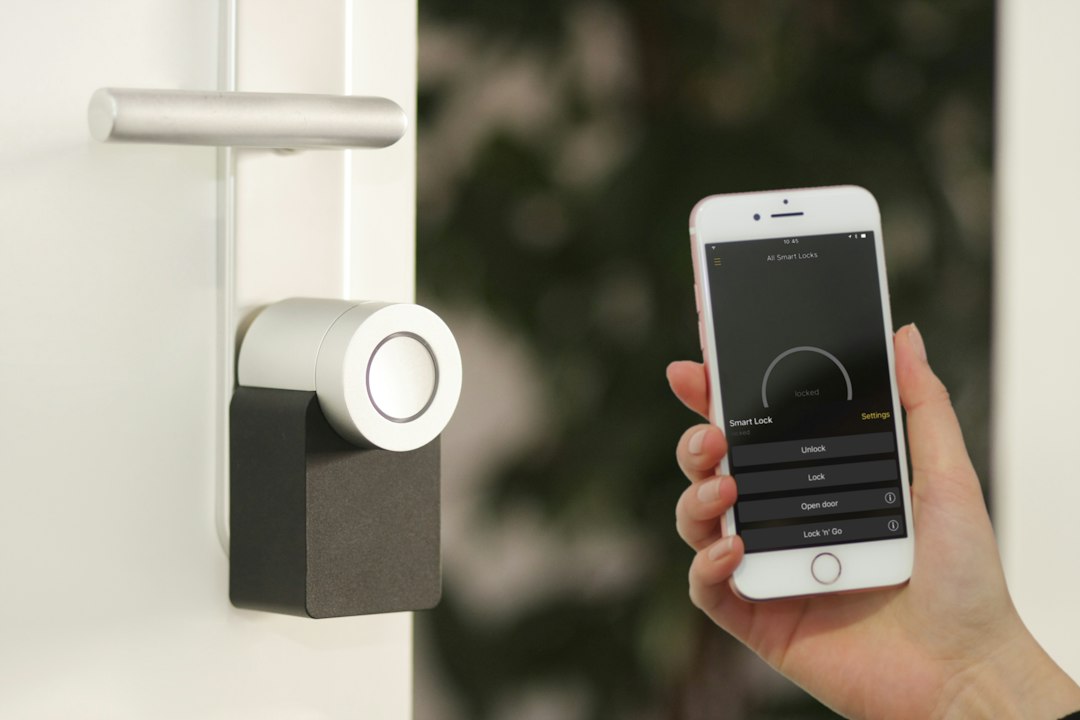
    Image credit: Sebastian Scholz (Nuki) via Unsplash.

  • Zigbee Devices Unavailable After a Power Outage: Diagnose Before Re-Pairing

    Zigbee Devices Unavailable After a Power Outage: Diagnose Before Re-Pairing

    A Zigbee device that suddenly shows Unavailable in Home Assistant after a power outage is not necessarily broken. The outage may have restarted the coordinator, router devices, or the integration in a different order. Work through these checks before removing the device or rebuilding your Zigbee network.

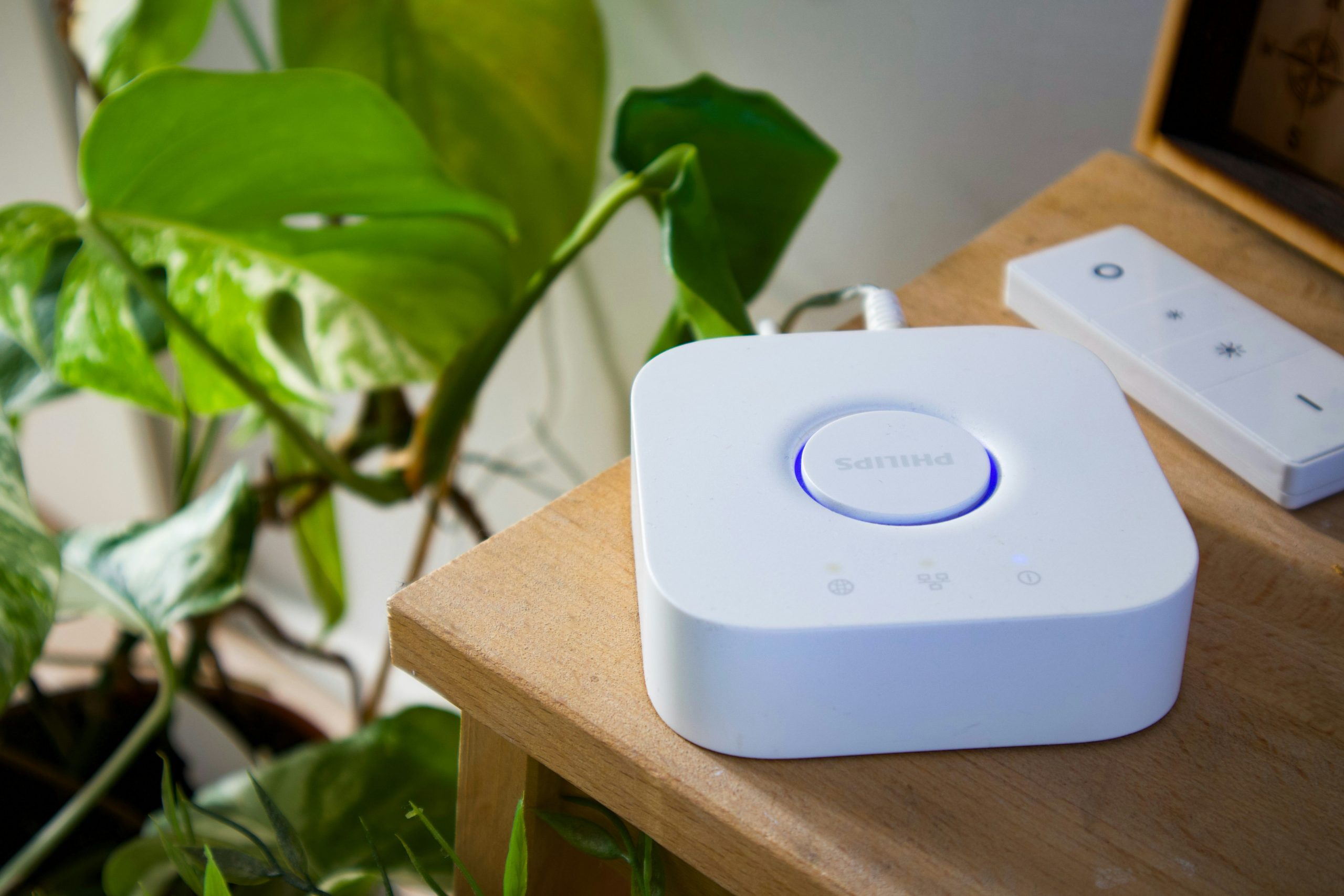
    Smart home hub and bridge used in a Zigbee troubleshooting setup
    Start by checking the hub, coordinator, and network status before pairing devices again.

    1. Check whether the coordinator is online

    Open the integration you use—ZHA or Zigbee2MQTT—and confirm that it is loaded and connected. If you use a USB coordinator, check that Home Assistant can still see its serial device. A changed USB path, loose connection, or coordinator that did not restart cleanly can make many devices appear unavailable at once.

    • Check the integration status and its logs.
    • Confirm the coordinator is powered and connected.
    • If using USB, inspect the configured serial path and avoid unplugging it while the integration is running.
    • Do not change the channel or restore a backup as a first step.

    2. Look for a network-wide outage or one missing device

    If many Zigbee devices went unavailable together, investigate the coordinator, integration, or power to Zigbee routers first. If only one battery sensor is missing, its battery or radio link may be the problem. Mains-powered Zigbee bulbs and plugs often act as routers; if several are still off after the outage, battery devices may have lost their usual route through the mesh.

    3. Restore power in a sensible order

    Make sure the coordinator and the Zigbee integration are running, then restore power to any mains-powered Zigbee routers that were switched off. Give the mesh time to settle. Wake a battery-powered sensor using its normal button or wake procedure, if its manufacturer supports one. Avoid repeatedly restarting everything; that makes it harder to tell which change helped.

    4. Check logs before re-pairing

    In ZHA or Zigbee2MQTT, inspect recent logs for coordinator disconnects, serial-port errors, failed interviews, or repeated communication timeouts. These point to different causes. A serial error suggests a coordinator or connection issue; repeated timeouts for one device suggest a range, battery, interference, or routing issue.

    5. When should you re-pair the device?

    Only consider re-pairing after the coordinator is stable, the integration is healthy, the device has power, and the logs suggest that the device itself is no longer communicating. Removing a device too early can discard its entity associations and create unnecessary setup work. If you do need to pair again, follow the device manufacturer’s reset instructions and your integration’s pairing procedure.

    Quick diagnosis

    What you see Check first
    Many devices unavailable Coordinator, integration, and powered Zigbee routers
    One battery sensor unavailable Battery, wake procedure, range, and route
    Serial-port or adapter error USB connection, device path, and coordinator status
    Device returns after waking Battery-saving behavior and mesh reliability

    Frequently asked questions

    Will I lose my Zigbee devices if Home Assistant restarts?

    Usually, a normal restart should not require re-pairing. If devices remain unavailable, diagnose the coordinator, integration, power, and radio path before deleting anything.

    How long should I wait after power is restored?

    Allow the coordinator and integration to become stable and give the mesh a few minutes to recover. Battery-powered devices may need to wake or report in before their status updates.

    Bottom line: after a power outage, check the coordinator first, then the integration, powered routers, and individual devices. Re-pair only after those checks point to a device-specific problem.

  • ZHA could not detect serial port settings: firmware, permissions, and radio fixes

    ZHA could not detect serial port settings: firmware, permissions, and radio fixes

    Direct answer: The error “ZHA was not able to automatically detect serial port settings for your adapter” means Home Assistant cannot prove the coordinator’s complete transport profile. Confirm the stable device path or network socket, radio family, port ownership, permissions, firmware, baud rate, and flow control before deleting ZHA or resetting Zigbee devices.

    This guide applies to Home Assistant OS, Supervised, Container, virtual-machine, and Core installations using ZHA with USB, internal, or network-attached Zigbee coordinators. The exact interface varies, but the safest order is hardware visibility, transport access, radio protocol, firmware validation, and only then Zigbee-network recovery.

    This is a coordinator-layer failure, not an end-device pairing failure. Factory-resetting bulbs, sensors, switches, locks, or plugs cannot make Home Assistant open a coordinator port. It may instead erase useful pairing state and make recovery harder.

    Exact symptoms and what they tell you

    The message may appear during first-time ZHA setup, reconfiguration, or a radio migration. Home Assistant may show a possible serial device but ask for manual port settings, or it may fail before listing a usable coordinator.

    If ZHA worked before a reboot, USB move, host update, container change, or firmware flash, that change is a strong clue. Record the sequence instead of changing several variables at once.

    If ZHA connects but individual devices remain unavailable, the serial problem is already past. Continue with mesh routing, channel interference, sleeping-device check-in, and device-level diagnosis rather than repeating coordinator setup.

    Before making changes

    Record the coordinator’s exact model and hardware revision, installed firmware family and version, device path or redacted network endpoint, selected radio type, baud rate, flow-control mode, and recent changes. Save a current full Home Assistant backup and a ZHA coordinator backup when available.

    Do not remove ZHA, erase the coordinator, flash firmware, or create a fresh Zigbee network as an opening move. ZHA’s migration and reconfiguration paths exist to preserve the existing network. Keep the old coordinator available until any migration is fully verified.

    Never expose a network coordinator’s serial socket to the public internet. Keep it on a trusted LAN and redact network keys, tokens, MAC addresses, public IPs, precise locations, and unrelated device identifiers before sharing diagnostics.

    Ranked diagnostic workflow

    1. Confirm host-level hardware visibility

    Why this branch ranks here: ZHA cannot probe a coordinator that the operating system or hypervisor does not expose.

    Least-destructive diagnostic: In Home Assistant OS inspect Settings → System → Hardware. In a VM or container confirm the physical adapter is attached consistently to the Home Assistant guest and appears after reboot.

    How to interpret the result: No device points to USB, power, cable, driver, or passthrough trouble. A device that appears and disappears suggests instability. A stable device lets you proceed to permissions and protocol selection.

    Verified repair: Reconnect through a known-good data cable, correct the narrow documented passthrough, and use stable power. Avoid an unpowered hub.

    Rollback: Restore the previous physical port and mapping if the adapter disappears after the change.

    2. Use a persistent serial-by-id path

    Why this branch ranks here: Short names such as /dev/ttyUSB0 or /dev/ttyACM0 may change when Linux enumerates devices differently.

    Least-destructive diagnostic: Compare ZHA’s configured path with the current /dev/serial/by-id entry shown in hardware information. Verify the identifier belongs to the coordinator, not another USB serial device.

    How to interpret the result: A changed short path explains a formerly working setup. A matching serial-by-id path makes renumbering less likely and moves attention to port ownership, permissions, parameters, or firmware.

    Verified repair: Reconfigure the current radio to the stable serial-by-id path without deleting ZHA.

    Rollback: Return to the recorded path if the identifier was chosen for the wrong hardware.

    3. Identify the installed radio protocol

    Why this branch ranks here: Similar product names and identical USB connectors can hide different chip families or firmware modes.

    Least-destructive diagnostic: Use the coordinator manufacturer’s current documentation and the firmware actually installed. Match it to ZHA’s supported radio family instead of guessing from appearance.

    How to interpret the result: A mismatched radio library can fail probing even while the serial port exists. Correct identification should produce a more specific connection result.

    Verified repair: Select the documented Silicon Labs, Texas Instruments, deCONZ, XBee, ZiGate, or other supported radio type.

    Rollback: Restore the prior selection if logs prove the new choice addresses a different protocol.

    4. Release the coordinator port

    Why this branch ranks here: A serial coordinator normally has one controlling application at a time.

    Least-destructive diagnostic: Stop Zigbee2MQTT, terminal sessions, flashing tools, or any second integration aimed at the same path. Retry ZHA once and inspect the earliest log entry.

    How to interpret the result: Success after releasing the port proves contention. Continued failure moves the investigation to permissions, serial parameters, firmware, or hardware reliability.

    Verified repair: Assign each Zigbee stack its own coordinator and stable path. Never configure ZHA and Zigbee2MQTT to share one radio.

    Rollback: Restart the former owner only when it is the intended Zigbee stack and ZHA should not use that adapter.

    5. Verify permissions and passthrough

    Why this branch ranks here: The host may list a serial device while Home Assistant lacks authority to open it.

    Least-destructive diagnostic: Confirm the service, container, or guest has the documented device access. Avoid using broad privileged mode merely to see whether it helps.

    How to interpret the result: Permission-denied or device-busy logs identify the transport boundary and do not prove coordinator failure. Correct access should let probing advance.

    Verified repair: Correct only the necessary device mapping, group access, or VM attachment, then restart the affected service once.

    Rollback: Restore the former security settings if the change is unrelated or grants excessive access.

    6. Stabilize USB power and radio placement

    Why this branch ranks here: Marginal power, faulty cables, hubs, and USB 3 interference can make identification intermittent.

    Least-destructive diagnostic: Use a short shielded extension, avoid unpowered hubs, separate the coordinator from USB 3 equipment, and watch hardware logs for disconnects.

    How to interpret the result: A stable path after relocation implicates the physical layer. A consistently stable adapter that still cannot probe points elsewhere.

    Verified repair: Keep the reliable port, cable, power source, and spacing arrangement. Replace only a confirmed faulty component.

    Rollback: Return to the prior arrangement if stability worsens, without erasing the Zigbee network.

    7. Enter documented baud and flow-control values

    Why this branch ranks here: Automatic probing cannot infer every nonstandard firmware profile.

    Least-destructive diagnostic: Compare the manual serial settings with current instructions for the exact coordinator and installed firmware. Record existing values first.

    How to interpret the result: A connection that succeeds with documented manual settings confirms an auto-detection mismatch, not a need to rebuild the network.

    Verified repair: Save the supported baud rate and hardware, software, or no-flow-control setting.

    Rollback: Restore the recorded values if communication becomes less reliable.

    8. Validate firmware before flashing

    Why this branch ranks here: Firmware may be incompatible, corrupt, or built for router mode rather than coordinator mode, but flashing has real recovery risk.

    Least-destructive diagnostic: Compare the reported firmware family and version with the vendor’s ZHA-compatible coordinator release for the exact hardware revision.

    How to interpret the result: A confirmed match argues against flashing. A confirmed mismatch justifies the vendor’s procedure after backups and stable power are in place.

    Verified repair: Flash only the exact supported image using the manufacturer’s process and recovery instructions.

    Rollback: Use the vendor’s recovery image and restore the coordinator backup only when the documented procedure calls for it.

    9. Check network-coordinator transport

    Why this branch ranks here: Ethernet and Wi-Fi radios add IP, DNS, TCP port, socket mode, client limits, and firewall variables.

    Least-destructive diagnostic: Confirm the reserved local address, correct Zigbee socket port, socket service, and absence of another connected client. Test locally without public port forwarding.

    How to interpret the result: Ping proves only IP reachability. Connection refused suggests a wrong port or disabled service; timeout suggests routing or firewall trouble.

    Verified repair: Enable the documented local socket, reserve the address, and restrict access to the trusted LAN.

    Rollback: Restore the former address and port when the device documentation contradicts the change.

    10. Use ZHA migration rather than deletion

    Why this branch ranks here: Replacing hardware safely requires preserving the coordinator network and its security material.

    Least-destructive diagnostic: Use ZHA Configure → Migrate radio, select the new serial port, and choose the automatic migration backup or an appropriate known-good backup.

    How to interpret the result: Successful migration should restore the network without mass re-pairing. Failure should be diagnosed before either radio is erased.

    Verified repair: Complete the official migration workflow and retain the original coordinator until restart verification passes.

    Rollback: Reconnect the original coordinator and restore its recorded settings if migration is incomplete.

    11. Separate mesh recovery from transport recovery

    Why this branch ranks here: Sleeping devices and routers may not all report immediately after the coordinator returns.

    Least-destructive diagnostic: Confirm ZHA loads, the coordinator survives one controlled restart, and mains-powered routers begin updating before touching battery devices.

    How to interpret the result: A healthy coordinator with isolated unavailable devices means the original serial error is repaired; remaining work is mesh or device specific.

    Verified repair: Allow battery devices to check in and diagnose remaining nodes individually.

    Rollback: Do not recreate the network just because one sleeping sensor has not reported yet.

    Verification

    Verification passes when ZHA loads without the exact serial-detection error, uses the intended stable path or local endpoint, and the selected radio library matches the installed firmware.

    Restart Home Assistant once. The coordinator must reconnect automatically and remain stable. Existing devices should resume reporting without mass re-pairing; sleeping battery devices may require their normal check-in interval.

    If the coordinator fails only after reboot, revisit persistent paths, VM or container passthrough, port ownership, reserved network addresses, and power. A one-time successful setup screen is not sufficient evidence.

    Recovery and escalation

    If a change makes the result worse, restore the recorded path, radio type, baud rate, flow control, mapping, or endpoint. Reverse only the last change so the evidence remains interpretable.

    Escalate with installation type, Home Assistant version, coordinator model and revision, firmware family and version, stable path or redacted endpoint, radio type, serial parameters, and the earliest concise log lines. State what changed immediately before failure.

    Safety and privacy

    Do not share Zigbee network keys, backup archives, tokens, credentials, full diagnostics, public IPs, or precise locations. Review and redact every attachment before posting.

    If Zigbee controls locks, alarms, heating, water valves, or safety equipment, provide manual control during maintenance. Do not flash firmware during unstable power or USB connectivity.

    Prevention

    Use a persistent serial-by-id path, stable power, a shielded extension away from USB 3 interference, separate coordinators for separate Zigbee stacks, and reserved addresses for network radios.

    Keep both Home Assistant and coordinator backups current. Record the working radio type and serial profile before upgrades so recovery does not depend on memory.

    Frequently asked diagnostic questions

    Does “confirm host-level hardware visibility” mean the hardware is broken?

    Not by itself. This check isolates one layer of the failure. No device points to USB, power, cable, driver, or passthrough trouble. A device that appears and disappears suggests instability. A stable device lets you proceed to permissions and protocol selection. Do not replace hardware until the relevant transport, permission, configuration, and software checks agree.

    Does “use a persistent serial-by-id path” mean the hardware is broken?

    Not by itself. This check isolates one layer of the failure. A changed short path explains a formerly working setup. A matching serial-by-id path makes renumbering less likely and moves attention to port ownership, permissions, parameters, or firmware. Do not replace hardware until the relevant transport, permission, configuration, and software checks agree.

    Does “identify the installed radio protocol” mean the hardware is broken?

    Not by itself. This check isolates one layer of the failure. A mismatched radio library can fail probing even while the serial port exists. Correct identification should produce a more specific connection result. Do not replace hardware until the relevant transport, permission, configuration, and software checks agree.

    Does “release the coordinator port” mean the hardware is broken?

    Not by itself. This check isolates one layer of the failure. Success after releasing the port proves contention. Continued failure moves the investigation to permissions, serial parameters, firmware, or hardware reliability. Do not replace hardware until the relevant transport, permission, configuration, and software checks agree.

    Does “verify permissions and passthrough” mean the hardware is broken?

    Not by itself. This check isolates one layer of the failure. Permission-denied or device-busy logs identify the transport boundary and do not prove coordinator failure. Correct access should let probing advance. Do not replace hardware until the relevant transport, permission, configuration, and software checks agree.

    Does “stabilize usb power and radio placement” mean the hardware is broken?

    Not by itself. This check isolates one layer of the failure. A stable path after relocation implicates the physical layer. A consistently stable adapter that still cannot probe points elsewhere. Do not replace hardware until the relevant transport, permission, configuration, and software checks agree.

    Does “enter documented baud and flow-control values” mean the hardware is broken?

    Not by itself. This check isolates one layer of the failure. A connection that succeeds with documented manual settings confirms an auto-detection mismatch, not a need to rebuild the network. Do not replace hardware until the relevant transport, permission, configuration, and software checks agree.

    Does “validate firmware before flashing” mean the hardware is broken?

    Not by itself. This check isolates one layer of the failure. A confirmed match argues against flashing. A confirmed mismatch justifies the vendor’s procedure after backups and stable power are in place. Do not replace hardware until the relevant transport, permission, configuration, and software checks agree.

    Does “check network-coordinator transport” mean the hardware is broken?

    Not by itself. This check isolates one layer of the failure. Ping proves only IP reachability. Connection refused suggests a wrong port or disabled service; timeout suggests routing or firewall trouble. Do not replace hardware until the relevant transport, permission, configuration, and software checks agree.

    Does “use zha migration rather than deletion” mean the hardware is broken?

    Not by itself. This check isolates one layer of the failure. Successful migration should restore the network without mass re-pairing. Failure should be diagnosed before either radio is erased. Do not replace hardware until the relevant transport, permission, configuration, and software checks agree.

    Does “separate mesh recovery from transport recovery” mean the hardware is broken?

    Not by itself. This check isolates one layer of the failure. A healthy coordinator with isolated unavailable devices means the original serial error is repaired; remaining work is mesh or device specific. Do not replace hardware until the relevant transport, permission, configuration, and software checks agree.

    Related Troubliq resources

    After transport recovery, use the ZHA pairing checklist, the post-update Zigbee recovery guide, and the Home Assistant Error Decoder.

    Evidence and testing status

    Last reviewed: September 28, 2026. Testing disclosure: The exact error wording, radio migration workflow, and coordinator concepts were checked against current Home Assistant documentation and Home Assistant Core source text. Troubliq did not reproduce every coordinator, firmware, hypervisor, container, or network-radio combination.
  • Zigbee or Z-Wave Broken After Home Assistant 2026.9.2: Safe Recovery Guide

    Zigbee or Z-Wave Broken After Home Assistant 2026.9.2: Safe Recovery Guide

    Quick answer: When Zigbee or Z-Wave devices become unavailable immediately after a Home Assistant 2026.9.2 update, preserve a backup and collect logs before repairing, re-pairing, or resetting anything. First determine whether the radio, integration, add-on, serial path, or individual device is failing. Re-pairing every device is rarely the correct first step.

    Current public reports describe Zigbee and, for some users, Z-Wave failures around the 2026.9.2 update. That does not mean every unavailable device is caused by the same regression. This checklist separates update-related failures from power, USB, network, coordinator, and mesh problems.

    Five-minute safety check

    1. Do not factory-reset the coordinator.
    2. Do not delete the ZHA, Zigbee2MQTT, or Z-Wave JS integration.
    3. Confirm you have a recent Home Assistant backup.
    4. Record the coordinator model, firmware, serial path, and integration version.
    5. Download the relevant logs before restarting repeatedly.

    Determine the scope

    • Every device failed: suspect the coordinator, serial path, add-on, driver, or integration startup.
    • One area failed: suspect a powered router device or mesh route.
    • Battery devices only: allow normal wake-up intervals and check battery state.
    • Only one device failed: troubleshoot that device before changing the network.
    • Zigbee and Z-Wave both failed: look for a broader USB, host, resource, or Core startup problem.

    Check what Home Assistant can still see

    Open Settings → Devices & services. Look at the integration status and the coordinator device. If the integration failed to initialize, open its error details and then inspect the full log. The first error after startup is usually more useful than repeated “entity unavailable” messages.

    For ZHA

    Confirm that the coordinator still exists at the configured serial path. USB device names such as /dev/ttyUSB0 can change after a reboot. A stable /dev/serial/by-id/... path is safer when available. Do not change the path blindly: compare the current hardware list with the integration configuration.

    Look for permission errors, port-in-use errors, radio initialization failures, and firmware mismatch messages. If another add-on opened the same port, stop only the conflicting service after verifying it.

    For Zigbee2MQTT

    Check the Zigbee2MQTT add-on status separately from Home Assistant Core. Confirm that MQTT is connected and that Zigbee2MQTT can open the coordinator. A healthy MQTT connection does not prove that the radio opened successfully.

    Inspect the add-on log for adapter detection, serial-port, firmware, and database errors. Preserve the Zigbee2MQTT data directory and coordinator backup before changing adapter configuration.

    For Z-Wave JS

    Check whether the Z-Wave JS server or add-on is running and whether Home Assistant remains connected to it. Confirm the controller path and inspect both the add-on log and the Home Assistant integration log. Avoid excluding and re-including devices until the controller connection is healthy.

    If the controller is visible but nodes remain asleep or unavailable, allow battery devices time to wake. Powered nodes failing together may indicate a controller, security-key, or network initialization problem.

    USB and hardware checks

    • Confirm the coordinator has power and appears in the host hardware list.
    • If it is connected through a USB extension cable, check both ends without moving the radio close to USB 3 interference.
    • Do not attach the same radio to two integrations.
    • On virtual machines, confirm USB passthrough still targets the correct physical device.
    • Record the original configuration before changing a serial path.

    Safe restart order

    1. Save the logs.
    2. Restart only the affected add-on or integration once.
    3. If the radio remains unavailable, perform one controlled host restart.
    4. Recheck the hardware path and the first startup error.
    5. Stop restarting if the same error repeats; use that error to choose the next branch.

    When to update forward or roll back

    Check whether a newer 2026.9 patch addresses the exact integration and hardware combination. Updating forward is preferable when a confirmed fix exists. Consider rollback only when the failure started with the update, the coordinator worked immediately beforehand, logs support a regression, and a pre-update backup is available.

    Restoring a backup changes configuration and database state. Read the backup date carefully and preserve a copy of the current state before restoring.

    Do not do these things first

    • Do not reset the coordinator.
    • Do not remove the integration.
    • Do not re-pair the entire mesh.
    • Do not generate new Z-Wave security keys.
    • Do not overwrite the Zigbee database.
    • Do not assume “unavailable” means every device lost its pairing.

    Decision tree

    1. Is the integration loaded? If no, inspect its first startup error.
    2. Is the radio visible to the host? If no, inspect USB, passthrough, power, and device paths.
    3. Can the add-on open the radio? If no, check path, permissions, conflicting processes, and firmware.
    4. Are all devices affected? If no, troubleshoot the failing branch or device rather than the coordinator.
    5. Did failure begin exactly after 2026.9.2? Compare the current issue report and later patch notes before rollback.

    What to collect for support

    • Core, OS, Supervisor, and add-on versions
    • Coordinator make, model, and firmware
    • Integration: ZHA, Zigbee2MQTT, or Z-Wave JS
    • Installation type and hardware platform
    • Stable serial path with unique identifiers partially redacted
    • First relevant error, not hundreds of repeated unavailable messages

    Current incident reference

    See Home Assistant Core issue #182076 for the current report concerning Zigbee and possible Z-Wave failures after 2026.9.2. Treat it as an incident report, not proof that every mesh failure has the same cause. Use the latest Home Assistant release notes and integration documentation before applying version-specific changes.

    Last reviewed: September 23, 2026.

    Additional evidence-based diagnostics

    Identify which protocol actually failed

    Zigbee and Z-Wave are separate networks with different coordinators, add-ons and security data. If both appear broken at the same time, first test whether Home Assistant Core, USB passthrough, MQTT, the host, or power failed more broadly. Do not apply a Zigbee repair to a Z-Wave controller.

    Read the first adapter message

    For ZHA, start with the radio initialization line. For Zigbee2MQTT, read the adapter startup before device availability messages. For Z-Wave JS, inspect the server and driver connection before node errors. A missing port, port-in-use result, permission error and firmware error require different fixes.

    Protect Zigbee network data

    Preserve the Zigbee2MQTT data directory, coordinator backup and configuration, or the supported ZHA backup where available. Do not form a new network, change the PAN ID, overwrite the database, or reset the coordinator during initial diagnosis.

    Protect Z-Wave security material

    Back up the Z-Wave controller using supported tools and preserve the S0 and S2 keys. Generating replacement keys can make securely included nodes unusable. Exclusion and re-inclusion are last-resort device operations, not fixes for a disconnected server.

    Check virtualization and containers

    After a host or Core update, verify that the physical radio is still attached to the intended virtual machine or container and that the device mapping uses a stable identifier. A coordinator can appear healthy on the host while being absent from the guest.

    Interpret partial recovery

    If mains-powered routers return but sleepy devices remain unavailable, allow normal wake intervals and manually wake devices according to their instructions. If only one area remains unavailable, investigate routing and powered repeaters. If every device remains unavailable, continue at the coordinator or service layer.

    Evaluate interference without rebuilding

    USB 3 devices, unshielded cables and 2.4 GHz congestion can affect Zigbee. Move a USB coordinator using a suitable extension and compare stability. Do not change Zigbee channels casually: channel changes can require devices to rediscover the network and may disrupt sleepy nodes.

    Verify add-on dependencies

    Zigbee2MQTT may require both a working coordinator and MQTT broker. A connected broker does not prove the serial adapter opened; an open adapter does not prove MQTT discovery reaches Home Assistant. Test each boundary and record the first failure.

    Post-repair validation

    Confirm the integration loads, the original coordinator and network identity remain present, several powered devices respond, battery devices report after waking, and the service survives one controlled restart. Check automations that depend on both protocols without triggering unsafe equipment.

    Escalation and privacy

    Share versions, coordinator models, firmware, installation type and the first sanitized error. Redact network keys, Z-Wave security keys, full serial identifiers, IP addresses and device location names. State whether the incident affects Zigbee, Z-Wave or both.

    Related Troubliq resources

    Use the Home Assistant Error Decoder to match the exact message, then review the current Home Assistant problems hub for related verified guides.

    Advanced interpretation and recovery

    ZHA-specific interpretation

    A ZHA integration entry that cannot initialize and names the radio library points to coordinator communication rather than individual devices. A loaded coordinator with one unavailable device points downstream. Compare radio firmware guidance for the exact chipset; do not flash firmware intended for a different coordinator.

    Zigbee2MQTT-specific interpretation

    Separate broker connection, adapter startup, database load and device interview phases. If MQTT fails, Home Assistant discovery can disappear while the Zigbee mesh still operates. If the adapter fails, Zigbee2MQTT cannot manage the network even with a healthy broker. If only an interview fails, use the existing device-interview guide rather than rebuilding the network.

    Z-Wave JS-specific interpretation

    Confirm the Z-Wave JS server is running, Home Assistant connects to its WebSocket, and the controller initializes with the preserved security keys. A node marked asleep is not dead. Use failed-node procedures only when the driver identifies the node as failed and the physical device is truly unreachable.

    Serial permission branch

    A permission-denied error is not corrected by changing the serial path or reflashing. Confirm the device ownership and supported container/add-on mapping. Avoid broad chmod changes that disappear after reboot or expose the serial device to unrelated processes.

    Port-in-use branch

    A busy port means another process owns the coordinator. Stop competing integrations or serial tools after identifying them. Do not kill arbitrary host processes or attach the coordinator to two services; exclusive ownership is a core requirement.

    Firmware branch

    Firmware becomes a leading suspect only after the correct radio, stable path, permissions, ownership, power and transport have been confirmed. Record the current build and coordinator backup before flashing. Follow the adapter maker’s recovery instructions and never interrupt power during an update.

    Mesh-routing branch

    When only a room or group of devices fails, inspect powered routers and recent removals in that area. Battery devices do not usually route. Restore power to known routers and allow the mesh to settle before re-pairing endpoints.

    Security-key branch

    Z-Wave S0/S2 keys and Zigbee network keys are not ordinary passwords to regenerate during troubleshooting. If keys differ after a restore or migration, securely included devices may fail even though the controller is visible. Compare backups and migration records before any inclusion changes.

    Result table

    Radio absent from host means hardware, passthrough or power. Radio present but cannot open means path, permission or ownership. Service opens radio but Home Assistant lacks entities means broker, integration or discovery. One device unavailable means device power, wake state, routing or compatibility. Both protocols failing points to a shared host or Core layer.

    Rollback and recovery

    If a serial-path edit fails, restore the recorded path. If an add-on update fails, restore its supported backup. If a host update broke passthrough, restore the known mapping. Keep the current radio and network databases intact until successful recovery is verified.

    Prevention

    Use stable by-id paths, label radios, keep off-host backups of coordinator and security data, document firmware, separate radios from USB 3 interference, reserve network-coordinator addresses, and review passthrough after hypervisor updates.

    Battery-device wake-up verification

    Battery Zigbee and Z-Wave devices may remain unavailable until their normal wake interval or a documented manual wake action. Verify powered routers and controller health first, then wake one representative battery device according to its manual. Do not factory-reset it simply because it did not report immediately after the controller recovered.

    Automation and entity verification

    After the mesh returns, compare entity identifiers and device associations before editing automations. Run only harmless tests on lights, sensors or test plugs. Avoid remotely testing locks, alarms, heaters, pumps or gates without a person present. Confirm that availability, commands and state feedback all work; a command accepted without updated state is only partial recovery.

    When replacement hardware is justified

    Replace a coordinator only after stable power, cable, port mapping, exclusive ownership, firmware and a second supported host test still show hardware communication failure. Preserve the old coordinator and backups until migration is complete. Choosing replacement hardware prematurely can turn a host configuration fault into a network migration.

  • Zigbee2MQTT interview state failed: safe fixes

    Zigbee2MQTT interview state failed: safe fixes

    Direct answer: A Zigbee2MQTT “interview failed” message means the device joined the Zigbee network but Zigbee2MQTT could not finish reading the descriptors, endpoints, clusters, or attributes needed to identify and control it. Keep battery devices awake, retry near a known-good coordinator or router, confirm the exact model is supported, and read the first failed interview step before changing firmware or rebuilding the network.

    What “interview state failed” actually means

    Joining and interviewing are separate. Joining establishes the device’s network relationship and security material. The interview then asks the device what it is: its node descriptor, active endpoints, supported clusters, manufacturer identifiers, and capabilities. A device can therefore appear in Zigbee2MQTT and still have no useful controls because the second stage did not complete.

    Do not confuse this with a coordinator startup failure. If Zigbee2MQTT cannot open the adapter, the interview never begins. Likewise, an MQTT connection problem can prevent Home Assistant from seeing results even when the Zigbee interview succeeded. Use the first error in the log to identify the layer.

    Symptoms and scope

    • The log reports a successful join followed by interview failed or interview state failed.
    • The device appears with an incomplete name, unsupported label, or no exposes.
    • Pairing repeatedly stops at the same descriptor, endpoint, cluster, or attribute request.
    • A battery device joins only while a button is pressed and then becomes silent.
    • One model fails while other devices interview normally.
    • Several models fail after a coordinator, firmware, channel, or network change.

    Preserve evidence before retrying

    Open the Zigbee2MQTT log and save the sequence from the first join message through the failure. Record the Zigbee2MQTT version, coordinator model and firmware, adapter type, Zigbee channel, installation method, device brand, printed model number, and any manufacturer/model identifiers shown in the log. Note whether permit-join targeted the coordinator or a router.

    Back up the coordinator and Zigbee2MQTT data directory before updating firmware, changing channels, or modifying network keys. Redact network keys, MQTT credentials, IEEE addresses when unnecessary, public addresses, tokens, and other identifiers before sharing logs.

    Ranked causes

    Likely causeEvidenceFirst safe test
    Battery device fell asleepInterview begins, then times out at varying stepsUse the manufacturer’s wake sequence throughout one retry
    Weak or unstable parent linkRetries, timeouts, or success only very close to the coordinatorInterview near a known-good parent without moving the whole network
    Unsupported fingerprint/converterOne exact model fails consistently while others workCheck the exact identifiers in the supported-device database
    Low battery or unstable powerDevice resets or leaves during interviewInstall a fresh recommended battery or verify the power supply
    Coordinator/firmware problemSeveral unrelated devices fail after the same changeCheck coordinator health and compatibility before updating again
    2.4 GHz interferencePacket loss affects multiple devices or one locationCompare one controlled retry in a cleaner location
    Stale partial entryRepeated retries reuse an incomplete recordRemove only the failed device entry, reset that device, and retry

    Step 1: confirm the exact model is supported

    Search the official Zigbee2MQTT supported-devices database using the exact model identifier, not only the retail name. Manufacturers may reuse product names while changing internal hardware or fingerprints. A visually identical device can require a newer converter or expose different clusters.

    If the device is listed, compare any pairing notes, required button sequence, and minimum Zigbee2MQTT version. If it is not listed, do not assume it is safe to substitute a similar converter. Preserve the interview log and identifiers for a device-support request. An open support issue is a report, not proof that all units are affected.

    Step 2: keep sleepy devices awake

    Battery devices often return to sleep before the interview completes. Follow the manufacturer or Zigbee2MQTT pairing instructions exactly. Some devices require repeated short presses, periodic presses, or holding a button until a light changes. Random rapid pressing can reset the device again or trigger a different mode.

    Start permit-join first, reset the device, and maintain the documented wake action until the log reports a successful interview. If the failure advances farther each time, sleep or link reliability is more likely than an unsupported device. If it fails at the identical unsupported descriptor or converter step, investigate model support.

    Step 3: choose the pairing parent deliberately

    Interview once near the coordinator or a proven compatible mains-powered router. Zigbee2MQTT can permit joining through a selected device, which is useful when the final location depends on a router. Keep USB coordinators away from USB 3 equipment and other radio-noise sources using a quality extension cable where recommended.

    Do not pair every device beside the coordinator and then move it across the building. Some end devices choose a parent during joining and may not immediately find a better route after relocation. A controlled close-range test is diagnostic; if it succeeds, remove the temporary entry, reset the device, and pair it in the intended location through an appropriate router.

    Step 4: check power before software

    Use a fresh battery of the correct chemistry and size when the existing battery is uncertain. A device may have enough voltage to blink or begin joining but still reset during sustained radio activity. For mains-powered products, stop if wiring, heat, swelling, odor, sparks, or moisture are involved; use a qualified electrician or the manufacturer rather than continuing software tests.

    For USB-powered routers or coordinators, verify the cable and supply. Intermittent USB power can resemble a device interview problem when the coordinator silently reconnects. Check the host log for USB disconnects at the same timestamp.

    Step 5: read which interview request failed

    A node-descriptor timeout points toward the device not answering early in the process. Failure while discovering active endpoints may indicate sleep, link loss, or unusual firmware behavior. A consistent cluster or attribute-read failure can expose a converter expectation or nonstandard implementation. A manufacturer/model fingerprint mismatch points toward device support rather than radio range.

    Use debug logging only long enough to reproduce one clean attempt, then return to the normal level. More logs are not automatically better; repeated attempts can bury the first meaningful exchange. Keep timestamps synchronized so coordinator, Zigbee2MQTT, and host messages can be compared.

    Step 6: distinguish one-device failures from system failures

    If one model fails while several known-good devices interview successfully in the same location, focus on its wake sequence, power, fingerprint, and support status. If unrelated devices all fail, inspect shared layers: coordinator connection, adapter firmware compatibility, host USB stability, Zigbee channel, permit-join state, and interference.

    Do not change the Zigbee channel as an early experiment. Channel changes affect the entire network and sleepy devices may miss the update. First compare Wi-Fi channel use, coordinator placement, packet-loss symptoms, and a controlled short-range retry. If a channel change becomes justified, back up first and follow the official procedure.

    Step 7: clear only the failed partial record

    If Zigbee2MQTT retained an incomplete entry, remove that device entry only, then factory-reset that physical device according to its instructions. Confirm permit-join is enabled for the intended parent and retry once. Do not delete working devices, regenerate the network key, erase the coordinator, or create a new network.

    After removal, verify that the next attempt receives a fresh join event. If no join appears, the device may not have reset, permit-join may have expired, or it may be attempting to rejoin through a parent that is unavailable.

    Step 8: update only with evidence and rollback

    Check the Zigbee2MQTT release notes and supported-device entry before updating. A newer converter may add the fingerprint you need, but updating every component simultaneously destroys the evidence showing which change mattered. Record the current version, preserve the data directory, update one layer, and repeat the same controlled interview.

    Coordinator firmware changes carry greater risk. Confirm the exact adapter hardware, recommended firmware family, backup/restore path, and compatibility with the installed Zigbee stack. Never flash firmware intended for a similar-looking adapter. If the update does not improve the interview, restore the documented supported version when a safe rollback exists.

    Interview versus reconfigure

    An interview discovers what a newly joined device supports. Reconfigure is generally used after a device is already known, to repeat configuration such as binding or reporting where supported. Reconfigure does not replace a missing initial interview and cannot make an unknown fingerprint supported. Use the action that matches the failed stage.

    If the interview completed and the device has correct exposes but updates are missing, reconfigure may be relevant. If the log still says interview failed and the device definition is incomplete, return to wake, link, power, and support checks.

    How to verify a real fix

    • The log explicitly reports a successful interview, not merely a successful join.
    • The device page shows the expected manufacturer, model, endpoints, and exposes.
    • A fresh device-originated state, measurement, or button event appears.
    • One harmless command works where the device supports commands.
    • The device remains available through its normal sleep/report interval.
    • Zigbee2MQTT restarts once and recognizes the device without interviewing it again.

    Validate with a lamp, sensor, or other non-safety-critical device action. Do not use locks, alarms, heaters, medical devices, garage doors, or hazardous loads as the first test.

    Rollback and recovery

    If a software or firmware update worsens the result, stop retrying and restore the prior supported state using its documented rollback process. Restore the Zigbee2MQTT data backup if configuration or device records were damaged. Do not restore an old network key or coordinator backup casually; the coordinator and database must describe the same network.

    If the device joined but no longer responds after being moved, return it to the successful test location, wake it, and allow route repair. If that fails, remove only that device and pair again in the final location. Preserve automations and entity mappings before replacing a device record.

    When to escalate

    Escalate when the exact supported model fails repeatedly at the same interview step with fresh power and a strong link, when multiple devices began failing after a confirmed version change, or when coordinator disconnects appear. Include the device identifiers, Zigbee2MQTT version, coordinator and firmware, channel, installation method, selected pairing parent, wake procedure, and one sanitized debug log from join through failure.

    For a new-device support request, follow the Zigbee2MQTT contributor instructions and provide the exact fingerprint rather than guessing a converter. Do not post network keys, MQTT passwords, tokens, or unnecessary IEEE addresses.

    Prevention

    • Build a stable router backbone before adding many battery devices.
    • Pair devices in or near their intended location when practical.
    • Keep coordinator firmware, Zigbee2MQTT version, and backup dates documented.
    • Retain the manufacturer’s reset and wake instructions for each model.
    • Use fresh batteries for first pairing when the supplied battery is uncertain.
    • Update one layer at a time and test a known-good device afterward.

    What to do when the interview succeeds only beside the coordinator

    A close-range success proves that the device, coordinator, security exchange, and converter can complete an interview under favorable radio conditions. It does not prove the final location has a usable parent path. Do not leave a battery device paired beside the coordinator and simply move it across the home. Remove only that test entry, reset the device, and pair it again in its intended location through a stable mains-powered router when the device supports router-assisted joining.

    If the same device still fails in its final location, compare one known-good device there, confirm the intended router remains powered, and inspect 2.4 GHz interference without changing the whole Zigbee channel immediately. The result distinguishes a placement or parent problem from a model-specific interview problem. Record which parent was used and whether the failure occurs at the same descriptor step; that detail makes escalation much more useful.

    Evidence and testing disclosure

    Applies to: current Zigbee2MQTT installations where a device joins but its interview fails. Expected result: Zigbee2MQTT completes the interview, selects a correct device definition, exposes expected capabilities, and receives a fresh state. Verification: use the explicit successful-interview log plus device-originated and controller-originated tests. Testing status: this guide is based on official Zigbee2MQTT documentation and protocol-layer diagnosis; Troubliq did not physically test every device model. Last reviewed September 29, 2026.

    Related Troubliq guides

    For failures before an interview begins, see the coordinator and serial-port checklist. For ZHA pairing failures, use the ZHA pairing guide. You can also classify a sanitized message with the Home Assistant Error Decoder or browse the Zigbee troubleshooting hub.

  • ZHA coordinator keeps disconnecting with NCP entered failed state

    ZHA coordinator keeps disconnecting with NCP entered failed state

    Direct answer: This message means communication between Home Assistant and a Silicon Labs Zigbee coordinator became unstable. Stabilize the serial connection and power before changing the Zigbee network or re-pairing devices.

    Symptoms

    • ZHA becomes unavailable after startup or at random.
    • Logs contain “NCP entered failed state” or an application-controller restart.
    • Every Zigbee device drops at once.

    Prerequisites

    Record the coordinator model, firmware, connection path, and recent changes. Back up Home Assistant and the Zigbee network if your installation supports it.

    Diagnostic steps

    1. Confirm the coordinator has stable power and a data-capable cable.
    2. Move USB radios onto a short shielded extension cable, away from USB 3 ports and Wi-Fi equipment.
    3. Use a stable /dev/serial/by-id path when Home Assistant runs in a container or VM.
    4. Confirm the host has passed the USB device through to the Home Assistant environment.
    5. Check that ModemManager or another host service is not claiming the serial adapter.
    6. Avoid transporting the EZSP serial connection over Wi-Fi, WAN, or VPN.
    7. Enable ZHA debug logging, reproduce one disconnect, and save the relevant log window.

    Verify the fix

    Restart Home Assistant once, confirm ZHA initializes without errors, then observe whether several mains-powered and battery devices report normally.

    Recovery and rollback

    Do not delete ZHA, erase the radio, or re-pair the mesh while diagnosing a serial transport problem. Revert the cable, port, firmware, or VM mapping change that introduced the failure.

    Prevention

    Keep the coordinator local to the host, use stable device paths, document firmware versions, and change one infrastructure layer at a time.

    Sources

    Last reviewed: September 4, 2026.

    Related Troubliq guides

    Find your next troubleshooting path

    Use the related guide that matches the next confirmed layer of the failure. Avoid changing unrelated systems at the same time.

    Detailed evidence checklist for ZHA coordinator keeps disconnecting with NCP entered failed state

    Before another change, create a short incident record. Include the exact time the symptom appeared, what the system was doing, the last successful action, and every update or network change made during the previous day. Record the Home Assistant release, installation type, integration version, device model, firmware, connection method, current address, and relevant entity IDs. Screenshots are useful for visible states, but copy the exact error text because screenshots may crop the detail needed to search logs.

    Compare the failing item with one known-good item that uses the same path. If both fail, move outward toward shared services such as the integration, coordinator, add-on, DNS, router, cloud account, or Home Assistant host. If only one fails, stay close to that device: power, signal, address, credentials, firmware, permissions, and configuration. This comparison prevents a single-device problem from turning into an unnecessary system-wide rebuild.

    Network tests that prove the failing layer

    Use tests in layers. Confirm the address is current in the router or DHCP server. Confirm the Home Assistant host or container resolves the same name and reaches the intended address. Then test the actual documented service, port, or protocol. A dashboard loading on a phone proves only the phone’s path. A successful ping proves basic reachability, not authentication, WebSocket upgrades, multicast discovery, API encryption, event subscriptions, or application permissions.

    For segmented networks, document source VLAN, destination VLAN, direction, protocol, and port before editing a firewall rule. Test the smallest temporary exception and remove it if it did not help. Discovery traffic and control traffic may use different mechanisms. Seeing a device in discovery does not prove Home Assistant can maintain a working session.

    Configuration comparison procedure

    Export or photograph the current configuration without exposing secrets. Compare it with official documentation field by field: host, port, account, region, project, encryption setting, device identifier, and optional switches. Watch for trailing spaces, uppercase versus lowercase account names, obsolete hostnames, restored encryption keys, or an account belonging to the wrong home or region.

    Use Reconfigure or Reauthenticate before deleting an integration. Preserve entity IDs and note every automation, dashboard, script, scene, or helper that refers to them. If replacement becomes necessary, take a backup and map old entities to replacements. That makes rollback controlled rather than leaving broken references.

    Power, radio, and timing checks

    Do not interpret every unavailable state as software failure. Low-voltage devices may stay partly online while unstable power causes resets. Battery devices sleep and report on their own schedule. Wi-Fi and Bluetooth devices can associate yet fail at the application layer. Zigbee and Z-Wave devices depend on routes, radio conditions, and powered repeaters. Match the test to the technology instead of repeatedly pressing Reload.

    Allow enough time after each test. Cloud polling, sleepy devices, retained MQTT messages, mesh repair, Bluetooth advertisements, and DHCP changes do not update instantly. Define the expected interval, then wait through at least two normal cycles. If availability returns briefly, capture the next disconnect in logs instead of declaring success.

    Log-reading workflow

    Synchronize clocks and reproduce the problem once. Start with the first warning or error at that timestamp; later messages may be consequences. Group errors by layer: name resolution, timeout, refused connection, TLS certificate, unauthorized account, invalid token, missing permission, unsupported capability, malformed payload, device timeout, or rate limit. Each group suggests a different next action.

    Turn debug logging off after reproduction. Large files consume storage and bury the event. Redact tokens, passwords, keys, email addresses, public addresses, precise locations, and unnecessary unique identifiers. Keep the unredacted copy private for comparison with later tests.

    Safe change order

    1. Correct time, power, cabling, or an obviously stale address.
    2. Reload only the affected integration when documentation supports it.
    3. Use Reconfigure or Reauthenticate without deleting the entry.
    4. Restart only the affected device or add-on during a safe window.
    5. Restart Home Assistant when several components share the symptom or a change requires it.
    6. Update software after reading release notes and preserving rollback.
    7. Delete, exclude, reset, or rebuild only after safer checks prove it necessary.

    Post-repair validation

    Verify both directions. Confirm Home Assistant receives a fresh state, send one harmless command, and confirm the physical response. Check the returned state, logbook, history, and automation trace. Restart the affected component and verify automatic reconnection. During a maintenance window, confirm the repair survives a normal Home Assistant restart.

    Monitor long enough to cover the original pattern. If failure occurred overnight, after DHCP renewal, deep sleep, or token expiry, a five-minute test is insufficient. Record the confirmed cause and exact corrective change. Remove temporary firewall rules, extra logging, duplicate test integrations, and unused credentials.

    When to stop and escalate

    Stop if hardware overheats, power is unstable, storage reports errors, a controller backup fails, credentials are rejected across services, or firmware may be damaged. Escalate with versions, timestamps, topology, redacted logs, the first meaningful error, and results of each safe test. Do not repeat destructive steps while waiting for help.

    A strong report answers four questions: What still works? What exactly fails? What changed immediately beforehand? Which test most clearly separates the causes? Those answers help maintainers diagnose the correct layer.

    Verification checkpoint 1 focuses on stable by-id path. Observe the relevant state, event or log through two normal cycles and write down the timestamp. If the result is unchanged, undo the experimental change before testing another layer so the diagnosis remains controlled and reversible.Validation note 1: Recheck the symptom after a normal interval, compare it with the incident record, and document whether the latest change improved, worsened, or did not affect the failure. Restore the previous value when a test provides no benefit so unrelated changes do not accumulate.

    For checkpoint 2, inspect USB power rather than relying on the dashboard icon alone. Confirm the expected input, the system response and the returned state. Preserve the evidence, reverse any ineffective adjustment and move to the next checkpoint only after the current result is clear.Validation note 2: Recheck the symptom after a normal interval, compare it with the incident record, and document whether the latest change improved, worsened, or did not affect the failure. Restore the previous value when a test provides no benefit so unrelated changes do not accumulate.

    Checkpoint 3 — host detection: reproduce the original symptom once and record the result at the expected update interval. Compare it with the last known-good behavior. Keep the change only when this specific checkpoint improves the failure without creating a new warning; otherwise restore the previous value.Validation note 3: Recheck the symptom after a normal interval, compare it with the incident record, and document whether the latest change improved, worsened, or did not affect the failure. Restore the previous value when a test provides no benefit so unrelated changes do not accumulate.

    Verification checkpoint 4 focuses on radio type. Observe the relevant state, event or log through two normal cycles and write down the timestamp. If the result is unchanged, undo the experimental change before testing another layer so the diagnosis remains controlled and reversible.Validation note 4: Recheck the symptom after a normal interval, compare it with the incident record, and document whether the latest change improved, worsened, or did not affect the failure. Restore the previous value when a test provides no benefit so unrelated changes do not accumulate.

    For checkpoint 5, inspect serial ownership rather than relying on the dashboard icon alone. Confirm the expected input, the system response and the returned state. Preserve the evidence, reverse any ineffective adjustment and move to the next checkpoint only after the current result is clear.Validation note 5: Recheck the symptom after a normal interval, compare it with the incident record, and document whether the latest change improved, worsened, or did not affect the failure. Restore the previous value when a test provides no benefit so unrelated changes do not accumulate.

    Checkpoint 6 — container passthrough: reproduce the original symptom once and record the result at the expected update interval. Compare it with the last known-good behavior. Keep the change only when this specific checkpoint improves the failure without creating a new warning; otherwise restore the previous value.Validation note 6: Recheck the symptom after a normal interval, compare it with the incident record, and document whether the latest change improved, worsened, or did not affect the failure. Restore the previous value when a test provides no benefit so unrelated changes do not accumulate.

    Verification checkpoint 7 focuses on adapter firmware. Observe the relevant state, event or log through two normal cycles and write down the timestamp. If the result is unchanged, undo the experimental change before testing another layer so the diagnosis remains controlled and reversible.Validation note 7: Recheck the symptom after a normal interval, compare it with the incident record, and document whether the latest change improved, worsened, or did not affect the failure. Restore the previous value when a test provides no benefit so unrelated changes do not accumulate.

    For checkpoint 8, inspect extension-cable placement rather than relying on the dashboard icon alone. Confirm the expected input, the system response and the returned state. Preserve the evidence, reverse any ineffective adjustment and move to the next checkpoint only after the current result is clear.Validation note 8: Recheck the symptom after a normal interval, compare it with the incident record, and document whether the latest change improved, worsened, or did not affect the failure. Restore the previous value when a test provides no benefit so unrelated changes do not accumulate.

    Checkpoint 9 — initialization trace: reproduce the original symptom once and record the result at the expected update interval. Compare it with the last known-good behavior. Keep the change only when this specific checkpoint improves the failure without creating a new warning; otherwise restore the previous value.Validation note 9: Recheck the symptom after a normal interval, compare it with the incident record, and document whether the latest change improved, worsened, or did not affect the failure. Restore the previous value when a test provides no benefit so unrelated changes do not accumulate.

    Verification checkpoint 10 focuses on network backup. Observe the relevant state, event or log through two normal cycles and write down the timestamp. If the result is unchanged, undo the experimental change before testing another layer so the diagnosis remains controlled and reversible.Validation note 10: Recheck the symptom after a normal interval, compare it with the incident record, and document whether the latest change improved, worsened, or did not affect the failure. Restore the previous value when a test provides no benefit so unrelated changes do not accumulate.

    For checkpoint 11, inspect restart persistence rather than relying on the dashboard icon alone. Confirm the expected input, the system response and the returned state. Preserve the evidence, reverse any ineffective adjustment and move to the next checkpoint only after the current result is clear.Validation note 11: Recheck the symptom after a normal interval, compare it with the incident record, and document whether the latest change improved, worsened, or did not affect the failure. Restore the previous value when a test provides no benefit so unrelated changes do not accumulate.

    Identify what “NCP failed” means for this coordinator

    NCP refers to the network coprocessor used by many Zigbee coordinators. A failed state can come from a missing serial device, another process holding the port, an incorrect radio type, unstable USB power, firmware trouble or a coordinator that is still booting. Record the coordinator model, chipset, firmware, connection type and the exact ZHA initialization error before changing the configuration.

    For USB coordinators, use the stable by-id device path rather than a changing ttyUSB or ttyACM number. Confirm that the host still detects the adapter after a full power cycle and that the device has not been passed to another container, add-on or virtual machine. Zigbee2MQTT and ZHA must not open the same coordinator simultaneously. For network coordinators, verify the documented socket address and confirm that only the intended Zigbee service is using it.

    Check power and USB behavior safely

    Move the coordinator away from USB 3 ports, storage devices and Wi-Fi radios using a quality extension cable. Inspect host logs for disconnects or resets. Do not flash firmware simply because initialization failed once. First rule out a loose connector, inadequate power, a changed device path and a second process holding the serial interface.

    If firmware work becomes necessary, export a Home Assistant backup and preserve the Zigbee network information supported by the adapter and ZHA. Confirm the firmware image matches the exact chipset and bootloader. An incorrect image can make the coordinator unavailable and may prevent network recovery.

    Prove that the Zigbee network recovered

    • ZHA initializes without repeated radio or serial errors.
    • The coordinator remains connected through a normal Home Assistant restart.
    • Existing routers and end devices return without creating duplicates.
    • A nearby device reports a fresh attribute and accepts one harmless command.
    • No other add-on or container opens the coordinator port.

    If ZHA cannot start but the operating system sees the adapter consistently, collect the full initialization trace and compare its protocol and baud settings with the adapter documentation. If the adapter disappears at the operating-system level, focus on hardware, USB passthrough and power rather than repeatedly reloading ZHA.

  • Zigbee device will not pair with ZHA: safe diagnostic checklist

    Zigbee device will not pair with ZHA: safe diagnostic checklist

    Short answer: Put the Zigbee device close to the coordinator, confirm it is in a true factory-new pairing state, remove likely 2.4 GHz interference, and watch the ZHA pairing screen for evidence before repeating resets.

    Applies to

    Home Assistant using ZHA with a supported coordinator. Record the device model, coordinator model and firmware, Home Assistant version, and whether the device has ever joined another Zigbee network.

    1. Check the coordinator first

    Confirm that ZHA loads without an error and that existing Zigbee devices still respond. If the entire network is unavailable, do not reset the new device repeatedly; troubleshoot the coordinator connection, USB path, extension cable, power, and host first.

    2. Use the exact reset sequence

    Follow the manufacturer’s instructions for that exact model. A blinking light may indicate setup mode without proving that old network credentials were erased. Keep the device powered and close to the coordinator during the first attempt.

    3. Open pairing once

    Start Add Device in ZHA, trigger the device’s pairing sequence, and wait through the discovery window. Note whether ZHA sees nothing, begins an interview and fails, or completes but creates no usable entities. Those are different failure stages.

    4. Reduce interference safely

    Use a USB extension cable to move a USB coordinator away from the computer, SSDs, USB 3 equipment, and dense cabling. Temporarily move the device closer. Do not change Wi-Fi or Zigbee channels during an active pairing attempt.

    5. Try one controlled retry

    Close the pairing window, wait briefly, perform the documented reset again, and retry once. Battery devices may need a button tap during interview to remain awake. Replace a suspect battery with a known-good one if voltage is uncertain.

    If the interview fails

    Save redacted ZHA logs and note the stage or cluster that failed. Check current Home Assistant documentation and the manufacturer’s compatibility information. Community device handlers or quirks can help only when they match the exact model and firmware.

    Last resort

    Changing the coordinator, channel, or radio stack affects the whole mesh and requires a backup and recovery plan. Do not make network-wide changes to solve one unconfirmed device problem.

    Official sources

    Last reviewed: September 4, 2026.

    Find your next troubleshooting path

    Use the related guide that matches the next confirmed layer of the failure. Avoid changing unrelated systems at the same time.

    Define the pairing failure precisely

    “Will not pair” can mean that ZHA never discovers the device, discovers it but times out, creates an incomplete device, or adds it and then immediately loses it. Record the exact stage and message. Also note the device model, coordinator model, Home Assistant version, ZHA radio type, and whether the device was previously joined to another Zigbee network.

    Test only one change per pairing attempt. Repeatedly pressing buttons, restarting Home Assistant, changing channels, and moving the device at the same time may eventually produce a join, but it hides the cause and makes the next failure harder to solve.

    Confirm the coordinator is healthy

    Before blaming the new device, verify that ZHA is loaded and existing Zigbee devices are operating normally. Review the coordinator and ZHA logs for serial-port errors, radio resets, database problems, or repeated reconnects. If the entire network is unstable, pause pairing work and protect the existing network first.

    Check that no second application is trying to use the same coordinator. A radio cannot be controlled simultaneously by ZHA and another Zigbee stack. After a USB move, host restart, or virtualization change, confirm that Home Assistant still sees the intended adapter through the stable device path rather than a temporary port name.

    Place the device close for the first join

    Perform the initial test within a short, unobstructed distance of the coordinator while keeping the coordinator away from USB 3 devices, hubs, SSDs, and dense Wi-Fi equipment. This is a diagnostic position, not necessarily the device’s final location. A successful close-range join followed by failure at the destination points toward routing, interference, or coverage.

    Use a USB extension cable when supported to separate the radio from the host. Do not place the coordinator inside a metal cabinet or directly beside an access point. If moving the radio changes the result, preserve that evidence before changing Zigbee or Wi-Fi channels.

    Reset only according to the device procedure

    A device that remembers a former Zigbee network may ignore a new permit-to-join window. Use the manufacturer’s exact reset or rejoin sequence for the model and watch its LED pattern or display confirmation. Similar-looking products sometimes use different hold times, button sequences, or power cycles.

    Avoid endless factory resets. After one confirmed reset, reopen pairing in ZHA and follow the device’s join procedure once. If it still fails, collect logs and investigate the reported stage. Repeating the same action without new evidence can drain batteries and create partially initialized records.

    Check power and sleepy-device behavior

    Install a known-good battery with the correct chemistry and polarity, or verify stable mains power. A device may flash normally but brown out during radio transmission. For battery devices, keep the device awake during the interview using the documented short press or wake procedure; do not improvise rapid button presses unless the manual specifies them.

    Sleepy end devices may pause during configuration and appear to time out. Keep them near the coordinator and allow the process to finish. If ZHA creates a device with missing entities, wait, wake it as documented, and review the device signature and interview status before deleting it.

    Evaluate channel and interference evidence

    Zigbee and 2.4 GHz Wi-Fi share spectrum. Check whether failures began after an access-point, channel, or coordinator change. A channel change is a network-wide operation, not a casual pairing trick, because some devices may need time or manual intervention to follow the network.

    First reduce nearby interference and test at close range. If logs and repeated controlled tests support a channel conflict, plan any channel change with a coordinator backup and a recovery window. Do not rebuild a functioning mesh solely because one device has not yet joined.

    Remove stale records carefully

    If ZHA already contains an incomplete entry for the same device, inspect it before removal. Record the IEEE address and any entities or automations linked to the record. Remove only the failed entry you have identified, then perform one fresh join with logs enabled.

    Do not delete unrelated devices or the ZHA integration. Removing the integration can affect the whole network and is disproportionate to a single pairing failure. If the coordinator database appears damaged, stop and create backups before attempting broader recovery.

    Verify routing after a successful join

    Once paired, leave the device powered near the coordinator until configuration completes. Then move it gradually to the intended location and test state changes and commands. Mains-powered Zigbee routers may need time to establish useful routes; battery devices generally do not repeat traffic for others.

    Verify the repair after normal overnight operation and after any expected coordinator or Home Assistant restart. Record the final placement and the change that allowed pairing. If the device only works beside the coordinator, the pairing problem is solved but the mesh or interference problem remains.

    When to escalate

    Ask for model-specific help when ZHA consistently discovers the device but the interview fails at the same stage, the device signature appears incomplete, or the manufacturer’s documented reset procedure does not produce a join. Share sanitized pairing logs, the exact model, coordinator and firmware, Zigbee channel, Home Assistant version, and the distance used for the close-range test. Do not publish network keys, complete backups, serial-device identifiers, or unrelated logs. A narrow, reproducible report is far more useful than another sequence of untracked resets.

    Detailed evidence checklist for Zigbee device will not pair with ZHA

    Before another change, create a short incident record. Include the exact time the symptom appeared, what the system was doing, the last successful action, and every update or network change made during the previous day. Record the Home Assistant release, installation type, integration version, device model, firmware, connection method, current address, and relevant entity IDs. Screenshots are useful for visible states, but copy the exact error text because screenshots may crop the detail needed to search logs.

    Compare the failing item with one known-good item that uses the same path. If both fail, move outward toward shared services such as the integration, coordinator, add-on, DNS, router, cloud account, or Home Assistant host. If only one fails, stay close to that device: power, signal, address, credentials, firmware, permissions, and configuration. This comparison prevents a single-device problem from turning into an unnecessary system-wide rebuild.

    Network tests that prove the failing layer

    Use tests in layers. Confirm the address is current in the router or DHCP server. Confirm the Home Assistant host or container resolves the same name and reaches the intended address. Then test the actual documented service, port, or protocol. A dashboard loading on a phone proves only the phone’s path. A successful ping proves basic reachability, not authentication, WebSocket upgrades, multicast discovery, API encryption, event subscriptions, or application permissions.

    For segmented networks, document source VLAN, destination VLAN, direction, protocol, and port before editing a firewall rule. Test the smallest temporary exception and remove it if it did not help. Discovery traffic and control traffic may use different mechanisms. Seeing a device in discovery does not prove Home Assistant can maintain a working session.

    Configuration comparison procedure

    Export or photograph the current configuration without exposing secrets. Compare it with official documentation field by field: host, port, account, region, project, encryption setting, device identifier, and optional switches. Watch for trailing spaces, uppercase versus lowercase account names, obsolete hostnames, restored encryption keys, or an account belonging to the wrong home or region.

    Use Reconfigure or Reauthenticate before deleting an integration. Preserve entity IDs and note every automation, dashboard, script, scene, or helper that refers to them. If replacement becomes necessary, take a backup and map old entities to replacements. That makes rollback controlled rather than leaving broken references.

    Power, radio, and timing checks

    Do not interpret every unavailable state as software failure. Low-voltage devices may stay partly online while unstable power causes resets. Battery devices sleep and report on their own schedule. Wi-Fi and Bluetooth devices can associate yet fail at the application layer. Zigbee and Z-Wave devices depend on routes, radio conditions, and powered repeaters. Match the test to the technology instead of repeatedly pressing Reload.

    Allow enough time after each test. Cloud polling, sleepy devices, retained MQTT messages, mesh repair, Bluetooth advertisements, and DHCP changes do not update instantly. Define the expected interval, then wait through at least two normal cycles. If availability returns briefly, capture the next disconnect in logs instead of declaring success.

    Log-reading workflow

    Synchronize clocks and reproduce the problem once. Start with the first warning or error at that timestamp; later messages may be consequences. Group errors by layer: name resolution, timeout, refused connection, TLS certificate, unauthorized account, invalid token, missing permission, unsupported capability, malformed payload, device timeout, or rate limit. Each group suggests a different next action.

    Turn debug logging off after reproduction. Large files consume storage and bury the event. Redact tokens, passwords, keys, email addresses, public addresses, precise locations, and unnecessary unique identifiers. Keep the unredacted copy private for comparison with later tests.

    Safe change order

    1. Correct time, power, cabling, or an obviously stale address.
    2. Reload only the affected integration when documentation supports it.
    3. Use Reconfigure or Reauthenticate without deleting the entry.
    4. Restart only the affected device or add-on during a safe window.
    5. Restart Home Assistant when several components share the symptom or a change requires it.
    6. Update software after reading release notes and preserving rollback.
    7. Delete, exclude, reset, or rebuild only after safer checks prove it necessary.

    Post-repair validation

    Verify both directions. Confirm Home Assistant receives a fresh state, send one harmless command, and confirm the physical response. Check the returned state, logbook, history, and automation trace. Restart the affected component and verify automatic reconnection. During a maintenance window, confirm the repair survives a normal Home Assistant restart.

    Monitor long enough to cover the original pattern. If failure occurred overnight, after DHCP renewal, deep sleep, or token expiry, a five-minute test is insufficient. Record the confirmed cause and exact corrective change. Remove temporary firewall rules, extra logging, duplicate test integrations, and unused credentials.

    When to stop and escalate

    Stop if hardware overheats, power is unstable, storage reports errors, a controller backup fails, credentials are rejected across services, or firmware may be damaged. Escalate with versions, timestamps, topology, redacted logs, the first meaningful error, and results of each safe test. Do not repeat destructive steps while waiting for help.

    A strong report answers four questions: What still works? What exactly fails? What changed immediately beforehand? Which test most clearly separates the causes? Those answers help maintainers diagnose the correct layer.