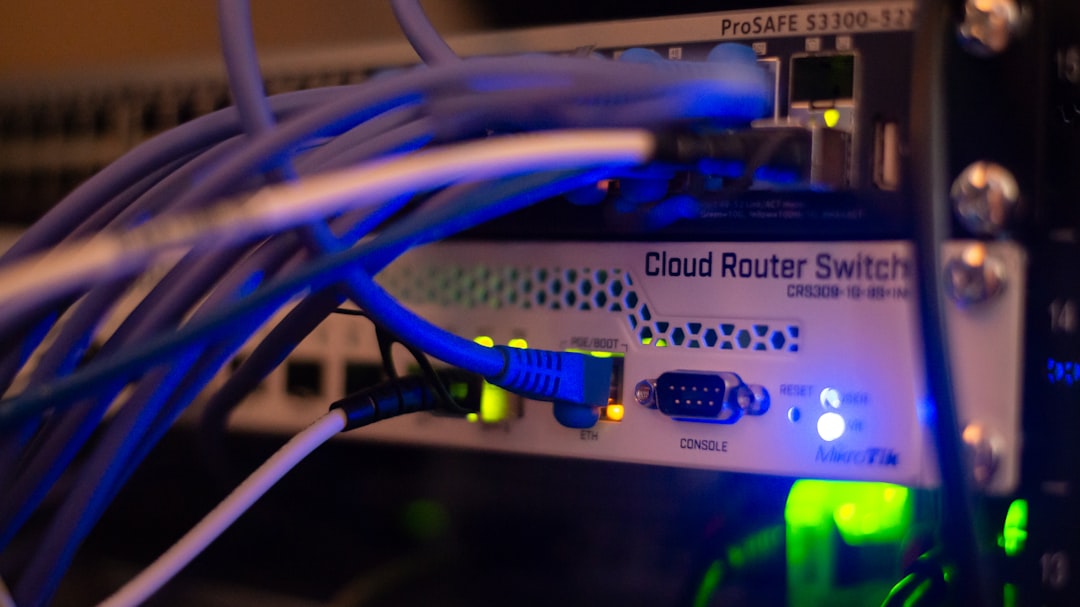
Quick answer: When Zigbee or Z-Wave devices become unavailable immediately after a Home Assistant 2026.9.2 update, preserve a backup and collect logs before repairing, re-pairing, or resetting anything. First determine whether the radio, integration, add-on, serial path, or individual device is failing. Re-pairing every device is rarely the correct first step.
Current public reports describe Zigbee and, for some users, Z-Wave failures around the 2026.9.2 update. That does not mean every unavailable device is caused by the same regression. This checklist separates update-related failures from power, USB, network, coordinator, and mesh problems.
Five-minute safety check
- Do not factory-reset the coordinator.
- Do not delete the ZHA, Zigbee2MQTT, or Z-Wave JS integration.
- Confirm you have a recent Home Assistant backup.
- Record the coordinator model, firmware, serial path, and integration version.
- Download the relevant logs before restarting repeatedly.
Determine the scope
- Every device failed: suspect the coordinator, serial path, add-on, driver, or integration startup.
- One area failed: suspect a powered router device or mesh route.
- Battery devices only: allow normal wake-up intervals and check battery state.
- Only one device failed: troubleshoot that device before changing the network.
- Zigbee and Z-Wave both failed: look for a broader USB, host, resource, or Core startup problem.
Check what Home Assistant can still see
Open Settings → Devices & services. Look at the integration status and the coordinator device. If the integration failed to initialize, open its error details and then inspect the full log. The first error after startup is usually more useful than repeated “entity unavailable” messages.
For ZHA
Confirm that the coordinator still exists at the configured serial path. USB device names such as /dev/ttyUSB0 can change after a reboot. A stable /dev/serial/by-id/... path is safer when available. Do not change the path blindly: compare the current hardware list with the integration configuration.
Look for permission errors, port-in-use errors, radio initialization failures, and firmware mismatch messages. If another add-on opened the same port, stop only the conflicting service after verifying it.
For Zigbee2MQTT
Check the Zigbee2MQTT add-on status separately from Home Assistant Core. Confirm that MQTT is connected and that Zigbee2MQTT can open the coordinator. A healthy MQTT connection does not prove that the radio opened successfully.
Inspect the add-on log for adapter detection, serial-port, firmware, and database errors. Preserve the Zigbee2MQTT data directory and coordinator backup before changing adapter configuration.
For Z-Wave JS
Check whether the Z-Wave JS server or add-on is running and whether Home Assistant remains connected to it. Confirm the controller path and inspect both the add-on log and the Home Assistant integration log. Avoid excluding and re-including devices until the controller connection is healthy.
If the controller is visible but nodes remain asleep or unavailable, allow battery devices time to wake. Powered nodes failing together may indicate a controller, security-key, or network initialization problem.
USB and hardware checks
- Confirm the coordinator has power and appears in the host hardware list.
- If it is connected through a USB extension cable, check both ends without moving the radio close to USB 3 interference.
- Do not attach the same radio to two integrations.
- On virtual machines, confirm USB passthrough still targets the correct physical device.
- Record the original configuration before changing a serial path.
Safe restart order
- Save the logs.
- Restart only the affected add-on or integration once.
- If the radio remains unavailable, perform one controlled host restart.
- Recheck the hardware path and the first startup error.
- Stop restarting if the same error repeats; use that error to choose the next branch.
When to update forward or roll back
Check whether a newer 2026.9 patch addresses the exact integration and hardware combination. Updating forward is preferable when a confirmed fix exists. Consider rollback only when the failure started with the update, the coordinator worked immediately beforehand, logs support a regression, and a pre-update backup is available.
Restoring a backup changes configuration and database state. Read the backup date carefully and preserve a copy of the current state before restoring.
Do not do these things first
- Do not reset the coordinator.
- Do not remove the integration.
- Do not re-pair the entire mesh.
- Do not generate new Z-Wave security keys.
- Do not overwrite the Zigbee database.
- Do not assume “unavailable” means every device lost its pairing.
Decision tree
- Is the integration loaded? If no, inspect its first startup error.
- Is the radio visible to the host? If no, inspect USB, passthrough, power, and device paths.
- Can the add-on open the radio? If no, check path, permissions, conflicting processes, and firmware.
- Are all devices affected? If no, troubleshoot the failing branch or device rather than the coordinator.
- Did failure begin exactly after 2026.9.2? Compare the current issue report and later patch notes before rollback.
What to collect for support
- Core, OS, Supervisor, and add-on versions
- Coordinator make, model, and firmware
- Integration: ZHA, Zigbee2MQTT, or Z-Wave JS
- Installation type and hardware platform
- Stable serial path with unique identifiers partially redacted
- First relevant error, not hundreds of repeated unavailable messages
Current incident reference
See Home Assistant Core issue #182076 for the current report concerning Zigbee and possible Z-Wave failures after 2026.9.2. Treat it as an incident report, not proof that every mesh failure has the same cause. Use the latest Home Assistant release notes and integration documentation before applying version-specific changes.
Last reviewed: September 23, 2026.
Additional evidence-based diagnostics
Identify which protocol actually failed
Zigbee and Z-Wave are separate networks with different coordinators, add-ons and security data. If both appear broken at the same time, first test whether Home Assistant Core, USB passthrough, MQTT, the host, or power failed more broadly. Do not apply a Zigbee repair to a Z-Wave controller.
Read the first adapter message
For ZHA, start with the radio initialization line. For Zigbee2MQTT, read the adapter startup before device availability messages. For Z-Wave JS, inspect the server and driver connection before node errors. A missing port, port-in-use result, permission error and firmware error require different fixes.
Protect Zigbee network data
Preserve the Zigbee2MQTT data directory, coordinator backup and configuration, or the supported ZHA backup where available. Do not form a new network, change the PAN ID, overwrite the database, or reset the coordinator during initial diagnosis.
Protect Z-Wave security material
Back up the Z-Wave controller using supported tools and preserve the S0 and S2 keys. Generating replacement keys can make securely included nodes unusable. Exclusion and re-inclusion are last-resort device operations, not fixes for a disconnected server.
Check virtualization and containers
After a host or Core update, verify that the physical radio is still attached to the intended virtual machine or container and that the device mapping uses a stable identifier. A coordinator can appear healthy on the host while being absent from the guest.
Interpret partial recovery
If mains-powered routers return but sleepy devices remain unavailable, allow normal wake intervals and manually wake devices according to their instructions. If only one area remains unavailable, investigate routing and powered repeaters. If every device remains unavailable, continue at the coordinator or service layer.
Evaluate interference without rebuilding
USB 3 devices, unshielded cables and 2.4 GHz congestion can affect Zigbee. Move a USB coordinator using a suitable extension and compare stability. Do not change Zigbee channels casually: channel changes can require devices to rediscover the network and may disrupt sleepy nodes.
Verify add-on dependencies
Zigbee2MQTT may require both a working coordinator and MQTT broker. A connected broker does not prove the serial adapter opened; an open adapter does not prove MQTT discovery reaches Home Assistant. Test each boundary and record the first failure.
Post-repair validation
Confirm the integration loads, the original coordinator and network identity remain present, several powered devices respond, battery devices report after waking, and the service survives one controlled restart. Check automations that depend on both protocols without triggering unsafe equipment.
Escalation and privacy
Share versions, coordinator models, firmware, installation type and the first sanitized error. Redact network keys, Z-Wave security keys, full serial identifiers, IP addresses and device location names. State whether the incident affects Zigbee, Z-Wave or both.
Related Troubliq resources
Use the Home Assistant Error Decoder to match the exact message, then review the current Home Assistant problems hub for related verified guides.
Advanced interpretation and recovery
ZHA-specific interpretation
A ZHA integration entry that cannot initialize and names the radio library points to coordinator communication rather than individual devices. A loaded coordinator with one unavailable device points downstream. Compare radio firmware guidance for the exact chipset; do not flash firmware intended for a different coordinator.
Zigbee2MQTT-specific interpretation
Separate broker connection, adapter startup, database load and device interview phases. If MQTT fails, Home Assistant discovery can disappear while the Zigbee mesh still operates. If the adapter fails, Zigbee2MQTT cannot manage the network even with a healthy broker. If only an interview fails, use the existing device-interview guide rather than rebuilding the network.
Z-Wave JS-specific interpretation
Confirm the Z-Wave JS server is running, Home Assistant connects to its WebSocket, and the controller initializes with the preserved security keys. A node marked asleep is not dead. Use failed-node procedures only when the driver identifies the node as failed and the physical device is truly unreachable.
Serial permission branch
A permission-denied error is not corrected by changing the serial path or reflashing. Confirm the device ownership and supported container/add-on mapping. Avoid broad chmod changes that disappear after reboot or expose the serial device to unrelated processes.
Port-in-use branch
A busy port means another process owns the coordinator. Stop competing integrations or serial tools after identifying them. Do not kill arbitrary host processes or attach the coordinator to two services; exclusive ownership is a core requirement.
Firmware branch
Firmware becomes a leading suspect only after the correct radio, stable path, permissions, ownership, power and transport have been confirmed. Record the current build and coordinator backup before flashing. Follow the adapter maker’s recovery instructions and never interrupt power during an update.
Mesh-routing branch
When only a room or group of devices fails, inspect powered routers and recent removals in that area. Battery devices do not usually route. Restore power to known routers and allow the mesh to settle before re-pairing endpoints.
Security-key branch
Z-Wave S0/S2 keys and Zigbee network keys are not ordinary passwords to regenerate during troubleshooting. If keys differ after a restore or migration, securely included devices may fail even though the controller is visible. Compare backups and migration records before any inclusion changes.
Result table
Radio absent from host means hardware, passthrough or power. Radio present but cannot open means path, permission or ownership. Service opens radio but Home Assistant lacks entities means broker, integration or discovery. One device unavailable means device power, wake state, routing or compatibility. Both protocols failing points to a shared host or Core layer.
Rollback and recovery
If a serial-path edit fails, restore the recorded path. If an add-on update fails, restore its supported backup. If a host update broke passthrough, restore the known mapping. Keep the current radio and network databases intact until successful recovery is verified.
Prevention
Use stable by-id paths, label radios, keep off-host backups of coordinator and security data, document firmware, separate radios from USB 3 interference, reserve network-coordinator addresses, and review passthrough after hypervisor updates.
Battery-device wake-up verification
Battery Zigbee and Z-Wave devices may remain unavailable until their normal wake interval or a documented manual wake action. Verify powered routers and controller health first, then wake one representative battery device according to its manual. Do not factory-reset it simply because it did not report immediately after the controller recovered.
Automation and entity verification
After the mesh returns, compare entity identifiers and device associations before editing automations. Run only harmless tests on lights, sensors or test plugs. Avoid remotely testing locks, alarms, heaters, pumps or gates without a person present. Confirm that availability, commands and state feedback all work; a command accepted without updated state is only partial recovery.
When replacement hardware is justified
Replace a coordinator only after stable power, cable, port mapping, exclusive ownership, firmware and a second supported host test still show hardware communication failure. Preserve the old coordinator and backups until migration is complete. Choosing replacement hardware prematurely can turn a host configuration fault into a network migration.