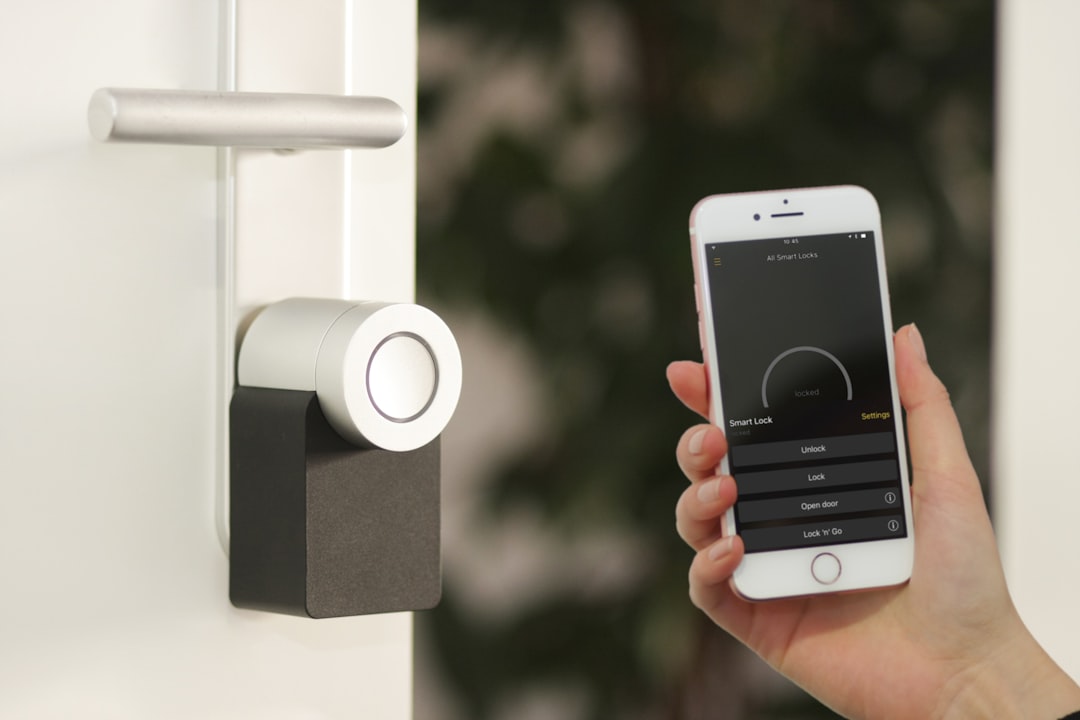
Direct answer: When a Reolink camera becomes unavailable in Home Assistant, check the camera’s Privacy mode entity first, then confirm its current IP address and local reachability before changing credentials or rebuilding the integration. Official documentation notes that privacy mode makes almost all Reolink entities—including streams and motion or AI detection—unavailable, and recommends a static address or DHCP reservation to prevent temporary failures after an IP change.
Last reviewed: September 9, 2026. Applies to current Home Assistant installations using the official integration named below; menus can vary slightly by release and installation type.
Symptoms and scope
Typical symptoms include a gray camera card, unavailable motion or person entities, a stream that spins indefinitely, snapshots that fail, or an integration entry that repeatedly retries. If every entity vanished at the same time, suspect privacy mode, power, address, or authentication. If sensors still update while only video fails, concentrate on stream availability, channel selection, browser playback, and the path between Home Assistant and the camera.
Prerequisites and evidence to preserve
Record the camera or NVR model, firmware, whether Home Assistant connects to a camera directly or through an NVR, the integration entry name, and the approximate failure time. Confirm that the official Reolink integration—not an old custom component—is being diagnosed. Keep the Reolink app available only as a comparison point; success in the cloud app does not prove that local access from Home Assistant works.
Likely causes
1. Privacy mode was enabled manually or by a schedule.
2. The router assigned a different camera or NVR address.
3. The camera is powered but unreachable from Home Assistant’s network or VLAN.
4. Credentials, permissions, firmware, or the selected NVR channel changed.
5. Only the video path is failing because of stream limits, codec handling, or simultaneous clients.
Least-destructive diagnostic sequence
Step 1: Open the device in Home Assistant and inspect the Privacy mode entity and its history around the outage. If it turned on, turn it off only if that matches the household’s privacy expectations; never automate around a deliberately enabled privacy control.
Step 2: From the router, identify the camera by MAC address and compare its lease with the address stored by the integration. Do not guess from a similarly named device. If the address changed, use the integration’s reconfigure flow when available, then create a DHCP reservation after service is restored.
Step 3: Verify the camera responds from the same network segment as Home Assistant. Test its local web interface or a basic network reachability check without exposing the camera to the internet. A phone on ordinary Wi-Fi may take a different path than Home Assistant on a server VLAN.
Step 4: Review Settings, System, Logs and filter around the failure time for Reolink, connection, authentication, timeout, host, stream, or channel messages. Preserve exact timestamps and the first error in a sequence; later timeout noise is often a consequence rather than the cause.
Step 5: If an NVR is involved, confirm the affected camera remains assigned to the same NVR channel and that the account used by Home Assistant can access that channel. Avoid deleting the integration simply because one channel changed.
Step 6: Separate entity availability from video playback. Check whether motion, person, battery, or diagnostic sensors still update. If they do, the integration session works and a full reset is unlikely to help; investigate the video-specific path and concurrent viewer load.
Step 7: Reload the Reolink integration once after correcting a confirmed cause. Repeated reloads can hide the timing evidence and add connection pressure. Restart Home Assistant only if logs or the integration explicitly indicate that a reload did not clear stale state.
Step 8: Test one live view and one snapshot after recovery, then close extra viewers and confirm motion entities update. Verification should include at least ten minutes without renewed unavailable states, not merely a single successful frame.
Diagnostic asset: choose the next branch
Decision guide: all entities unavailable points first to privacy mode, power, IP, or authentication; sensors available but video unavailable points to the stream path; one NVR channel missing points to channel mapping or permissions; intermittent failures point to addressing, Wi-Fi quality, connection limits, or network policy.
Deeper checks when the first sequence does not solve it
Begin with observation rather than removal. In Settings, Devices & services, open the integration entry and compare the integration status with individual entity states. Write down exactly what is unavailable, what remains responsive, and when the change began. This boundary prevents a narrow entity problem from being treated as a complete integration failure.
Check Settings, System, Repairs before changing configuration. A repair notice can describe a migration, deprecated behavior, reauthentication requirement, or duplicate-device correction more accurately than a generic entity state. Read the notice fully and record its wording before dismissing or applying it.
Use the device’s own local controls or official app as a comparison, but interpret that test carefully. A working vendor app may use a cloud path while Home Assistant uses the local network; conversely, a local device may work while its cloud account is unavailable. The comparison narrows the path but does not by itself identify the fault.
Build a short timeline from router events, Home Assistant updates, integration reloads, firmware changes, power interruptions, account changes, and the first failed automation. Correlation is not proof, but a reliable timeline tells you which evidence to inspect and which unrelated changes to leave alone.
Inspect diagnostics without publishing secrets. Useful evidence includes exact timestamps, sanitized error classes, addresses within your private network when appropriate, firmware versions, integration versions, and whether failures are continuous or intermittent. Remove tokens, cookies, serial numbers, email addresses, coordinates, and encryption material.
Change one variable at a time. After each change, repeat the same test and record the result. Simultaneously restarting the router, Home Assistant, bridges, and devices destroys the evidence needed to learn which action mattered and makes recurrence harder to prevent.
Prefer reload over restart when the integration supports it. Prefer reconfigure over delete-and-add when the host or account changed. Prefer a DHCP reservation over hard-coding addresses independently in several places. These choices preserve registry relationships and provide a simpler rollback.
Treat factory reset as recovery, not diagnosis. Before any reset, document pairings, automations, scenes, dashboards, entity IDs, network assignments, encryption keys, and manufacturer-specific recovery requirements. If those cannot be preserved, escalate before resetting.
When service returns, verify both directions: Home Assistant should read fresh state from the device, and a safe command from Home Assistant should be reflected by the device. Also confirm that a physical or vendor-app change is reported back to Home Assistant.
Test the real workflow, not only the device page. Trigger a representative automation in a controlled way, inspect its trace, confirm conditions and targets, and restore the previous state. A device can be healthy while an automation still points to an old entity.
Check recurrence across a normal operating period. Include at least one integration refresh, a DHCP lease check, or the next expected sensor update. For battery equipment, allow for its documented reporting interval instead of assuming silence means failure.
Create a rollback note containing the former value, new value, change time, and verification result. If the change worsens availability or creates duplicate entities, restore the known-good value before trying the next hypothesis.
Escalate with a compact evidence bundle when the problem survives safe local checks: model, firmware, Home Assistant version, integration name, sanitized first error, network topology relevant to the path, steps already attempted, and the smallest reliable reproduction. This gives maintainers actionable information without exposing the household.
Prevent recurrence by documenting address reservations, account ownership, update practices, backup location, integration-specific dependencies, and recovery contacts. Review these notes after router, firmware, or Home Assistant changes rather than waiting for the next outage.
Avoid unsupported certainty. An unavailable state describes a communication result, not necessarily a failed device. Power, privacy controls, address changes, authentication, sleeping behavior, rate limits, firmware, and network policy can create similar symptoms, so evidence must select the branch.
If the problem began immediately after an update, read the official integration documentation and current release notes before downgrading. A migration or renamed entity may be expected. Downgrades can introduce database incompatibility and should never be the first response to a single unavailable entity.
If several unrelated integrations fail together, stop device-specific troubleshooting. Check Home Assistant host health, DNS, time synchronization, network interfaces, Bluetooth or radio adapters, and upstream internet only where the affected integrations require it. Shared failures usually have a shared dependency.
If only one entity fails while sibling entities from the same device remain current, inspect whether it is disabled, unsupported, conditionally exposed, asleep, or dependent on a specific feature. Re-pairing the entire device is disproportionate until those possibilities are excluded.
Verification checklist
Confirm the integration reports loaded, the affected entities have current timestamps, state changes travel in both directions, and the original automation or dashboard works with the expected entity. Repeat the test after a normal reload. Do not declare success from a single momentary update.
Check that no duplicate device or replacement entity appeared. If a new entity ID was created, compare it with automations, scripts, scenes, dashboards, voice-assistant exposure, and history before removing or renaming anything.
Rollback and recovery
If the latest change made the system worse, restore the recorded prior address, option, entity reference, or integration configuration. Reload once and retest. If rollback cannot restore the known-good state, stop making changes, preserve logs, and use the evidence bundle described above.
Safety and privacy warning
Do not port-forward the camera, disable its privacy setting without authorization, or factory-reset it as an early diagnostic. Cameras can expose private household video. Preserve recordings and configuration before firmware changes or resets, and ensure the owner understands any cloud or subscription effects.
Prevention
Keep Home Assistant, the official integration, and device firmware within supported versions, but avoid changing all layers on the same day. Maintain a current backup, reserve stable network addresses where appropriate, label devices by MAC address, and review logs after planned maintenance.
Related Troubliq guides
Start with the Smart-Home Diagnostic Decision Tree, visit the category hub, and compare these related guides: matter device unavailable home assistant, esphome offline still on wifi, duplicate devices home assistant 2026 8 repair.
Sources
Primary source: Home Assistant Reolink integration documentation. This guide synthesizes the official behavior into a conservative diagnostic order; it does not claim hands-on testing of every model or network.
Frequently asked diagnostic questions
Can privacy mode affect more than video?
Yes. The official Reolink documentation says privacy mode can make almost all entities unavailable, including motion and AI detection. Check its history before treating simultaneous failures as separate faults.
Why does the mobile app work while Home Assistant fails?
The app may reach the camera through a different local or cloud path. Compare the camera address and network route used by Home Assistant; app success proves power and account access, not local reachability from the Home Assistant host.
Should I expose RTSP or the camera web port to the internet?
No. Internet port forwarding is not a reasonable availability fix. Keep camera services on trusted local networks and use a properly secured remote-access method if remote viewing is required.
What if only one NVR camera is missing?
Check channel assignment, camera-to-NVR connectivity, and account permission for that channel. One channel failure is narrower than an NVR or integration failure and should not trigger a full reset.
When is a static address appropriate?
A DHCP reservation is usually easier to manage than configuring a static address independently on the camera. Reserve the verified MAC address and ensure the chosen lease cannot collide with another client.
What evidence belongs in escalation?
Include the exact model, firmware, whether it is direct or NVR-connected, sanitized first error, affected entities, privacy-mode history, address test, and whether sensors work while video fails.
Final verification record
Record the date, Home Assistant version, device firmware, integration status, entity IDs checked, commands tested, state-update interval observed, and any network or account change that solved the failure. This record turns today’s repair into a faster and safer response if the symptom returns.